A landed cost purchase orders lets you assign a supplier's invoice as a landed cost to another stock purchase order. You an attribute multiple landed cost purchase orders to the same stock purchase order.
Create a new purchase order that matches the landed cost supplier's invoice. The important field makes this order a landed cost purchase order is the PO To Attribute Costs dropdown. Note: A landed cost purchase order cannot be a project purchase order (do not select a project in the Project for PO field)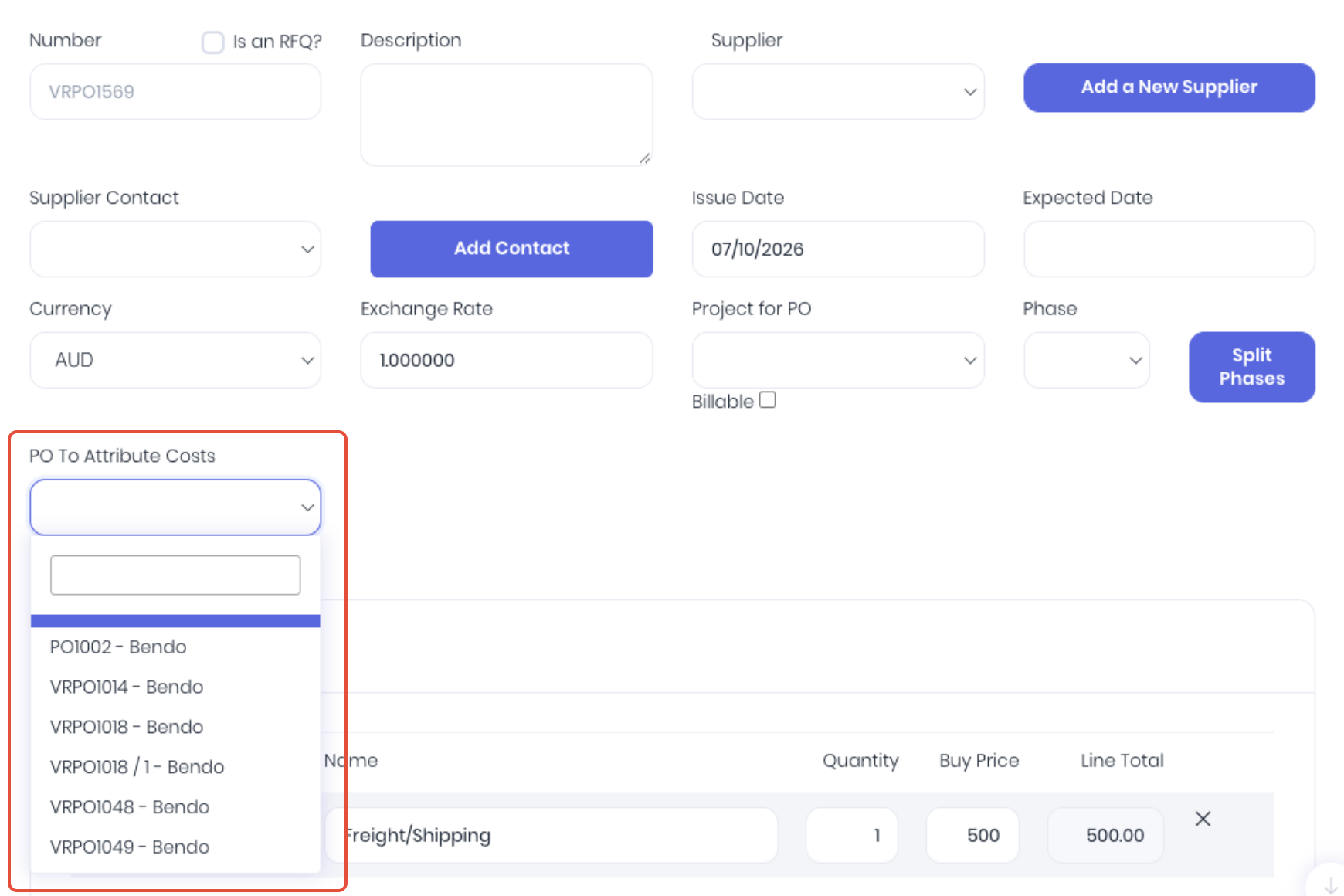
From the PO To Attribute Costs dropdown, choose the PO number of the stock purchase order that you want to attribute the total value of this PO to as landed costs. Note: You can only assign a landed cost to approved or received stock purchase orders.
Add line items to as per the suppliers invoice by clicking Add Product. This is usually a NonStock product such as shipping, customs, duty etc. It is recommended that you add your common landed costs to your product lists as non-stock items so you can setup alternate general ledger accounts and tax rates as required.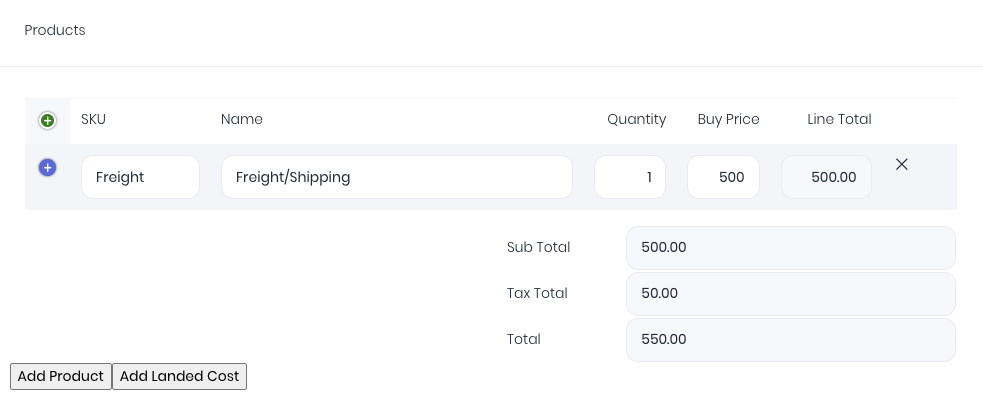
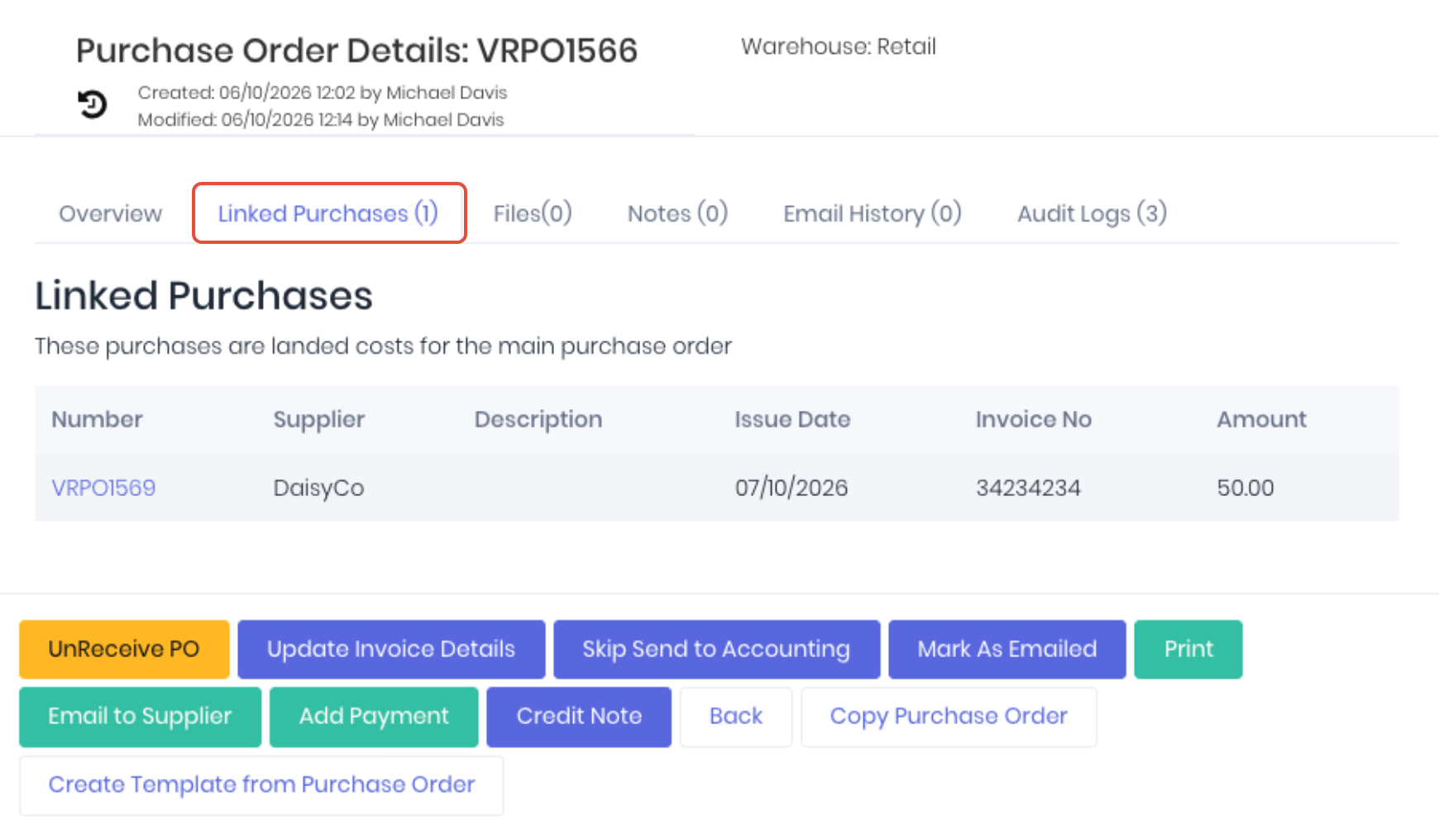
Check the totals match the supplier invoice and click Save and Approve to save the changes. When the landed cost purchase order is received, it will apply the order's total value to the attributed stock purchase order. You can confirm the landed cost attribution by checking the the relevant product's landed cost in it's stock movement history and the Linked Purchases tab of the attribited purchase order's details page.
Was this article helpful?
That’s Great!
Thank you for your feedback
Sorry! We couldn't be helpful
Thank you for your feedback
Feedback sent
We appreciate your effort and will try to fix the article