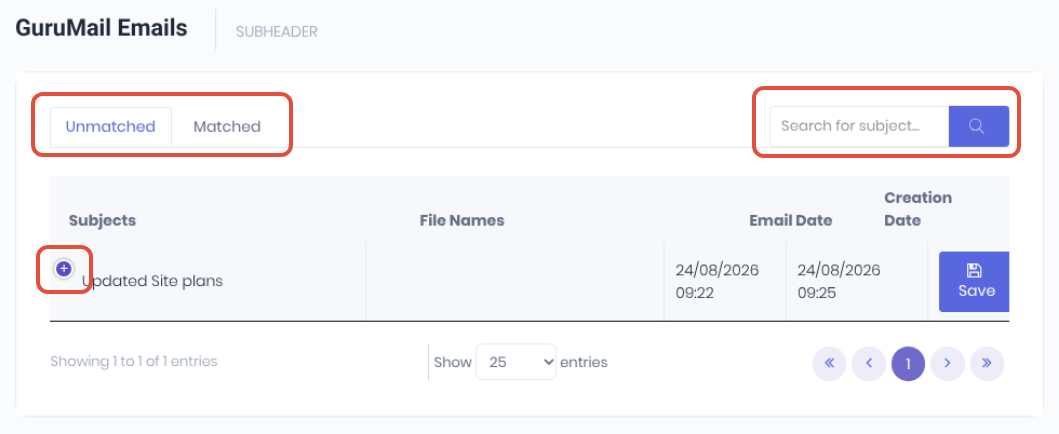
The GuruMail dashboard (Administration -> Guru Mail) allows you to manage any email sent to your WorkGuru tenant's collaboration email address. Emails are displayed in two searchable tabs:
- Unmatched - Shows emails which GuruMail has not been able to match to any transactions (such as a typo'd or no transaction number in the email's subject line)
- Matched tab will display all emailed files that GuruMail has been able to match to existing transactions.
Matching Emails
If an email is not able to be matched automatically, you can review the list from the Unmatched tab. To match an email, click the + icon to expand the email. Review the email's content and select which transaction(s) using the drop down. Once selected, click Save to match. Note: If matching a project, it cannot be matched to a production job and vice versa, selecting one will automatically list the other as unmatched.
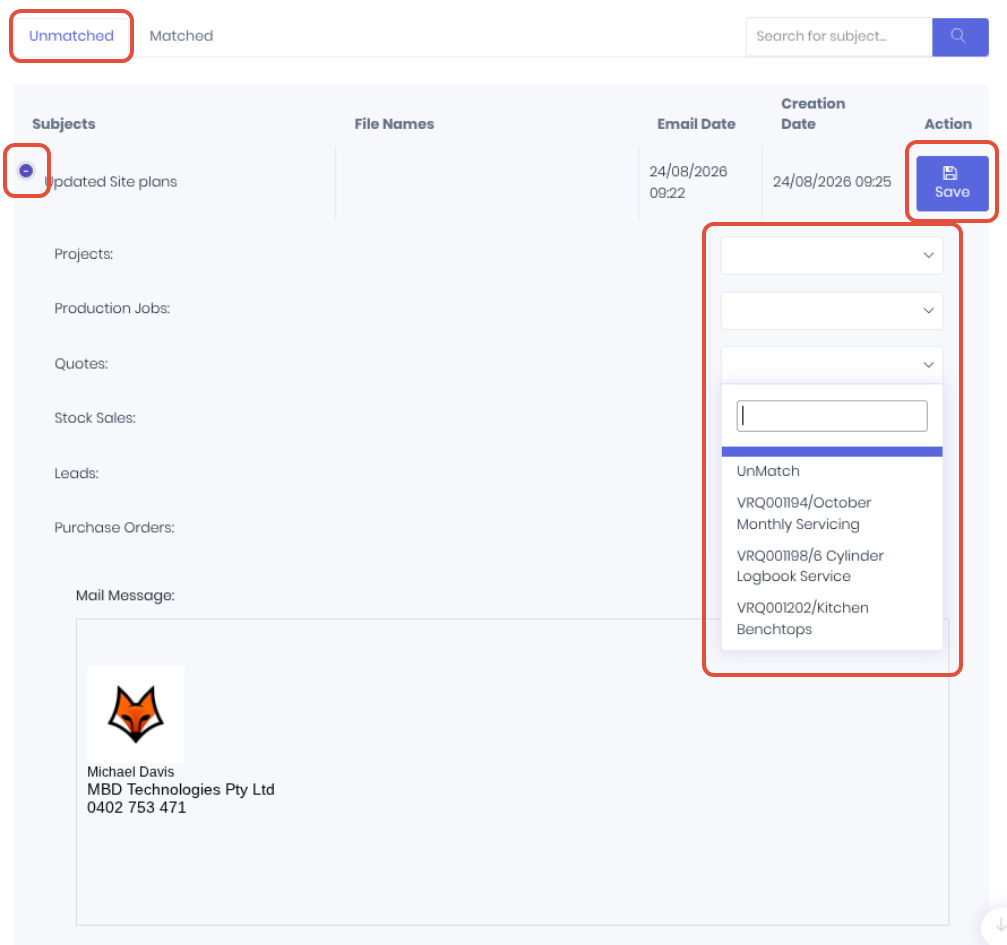
If the Unmatched tab is empty, all emails have been manually or automatically matched successfully. It is recommended best practice to monitor this dashboard periodically to ensure all your quotes, projects etc are up to date with their emails.
Re-Matching Emails
If an email has automatically matched correctly, but not to the right transaction, you can move the emails to the correct transaction via the Matched tab. Click the + icon to expand the email, the current allocation will be displayed in the relevant dropdown. Select the required transaction from the dropdown and click Save to move the email to the new transaction. Note: You can also select other transaction types if required.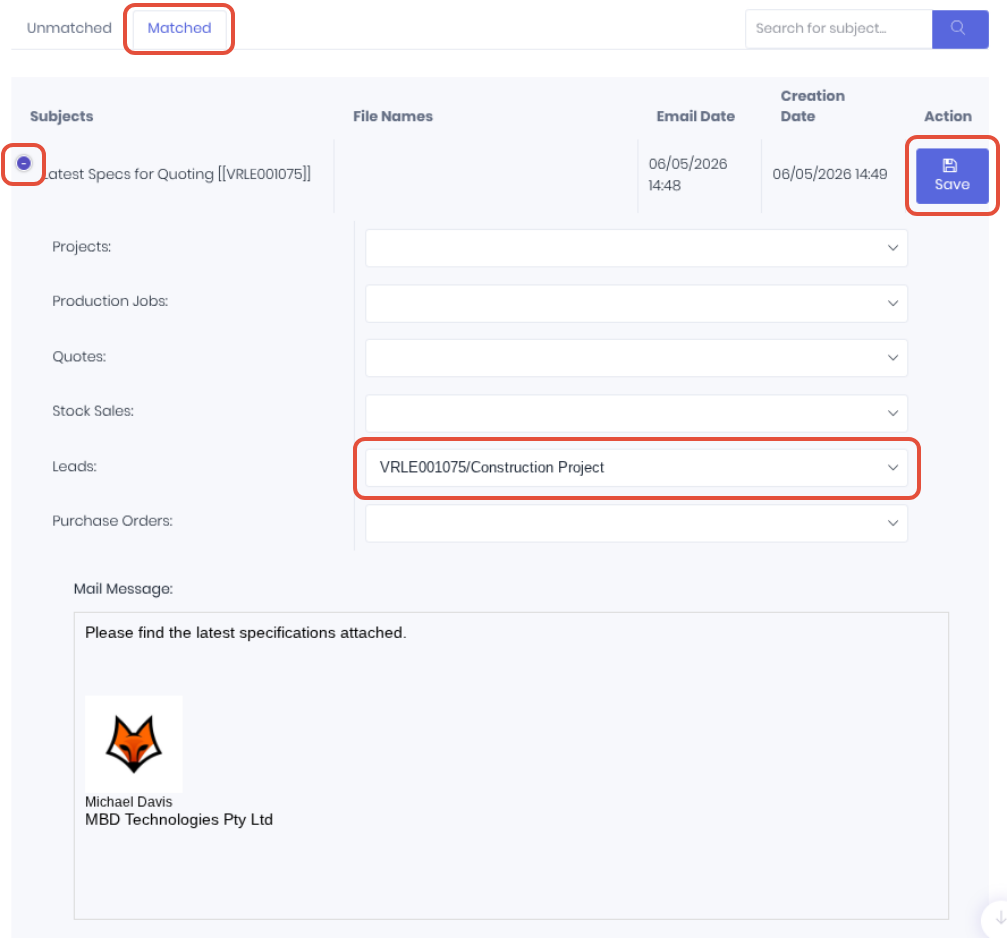
Was this article helpful?
That’s Great!
Thank you for your feedback
Sorry! We couldn't be helpful
Thank you for your feedback
Feedback sent
We appreciate your effort and will try to fix the article