Connecting Microsoft Copilot to WorkGuru via the MCP is built once by a developer or admin; after that each person just signs in to WorkGuru the first time they use it.
Requirements
What You Need | Responsibilities | Notes |
|---|---|---|
Beta program enabled on your WorkGuru tenant. | WorkGuru support | AI assistant access is part of the Beta. Until it's on, every connection is refused |
Use AI Assistants (MCP) permission enabled for approved roles/users | Your WorkGuru admin | Only the Admin role has it enabled by default. Anyone else needs it enabled. |
A Copilot Connector | Your Copilot Developer or Admin | Built once using the Teams Development portal. |
| A Copilot Account | You | |
WorkGuru Login | You | Standard login. There's no API key or secret to create. |
Enable WorkGuru MCP Access
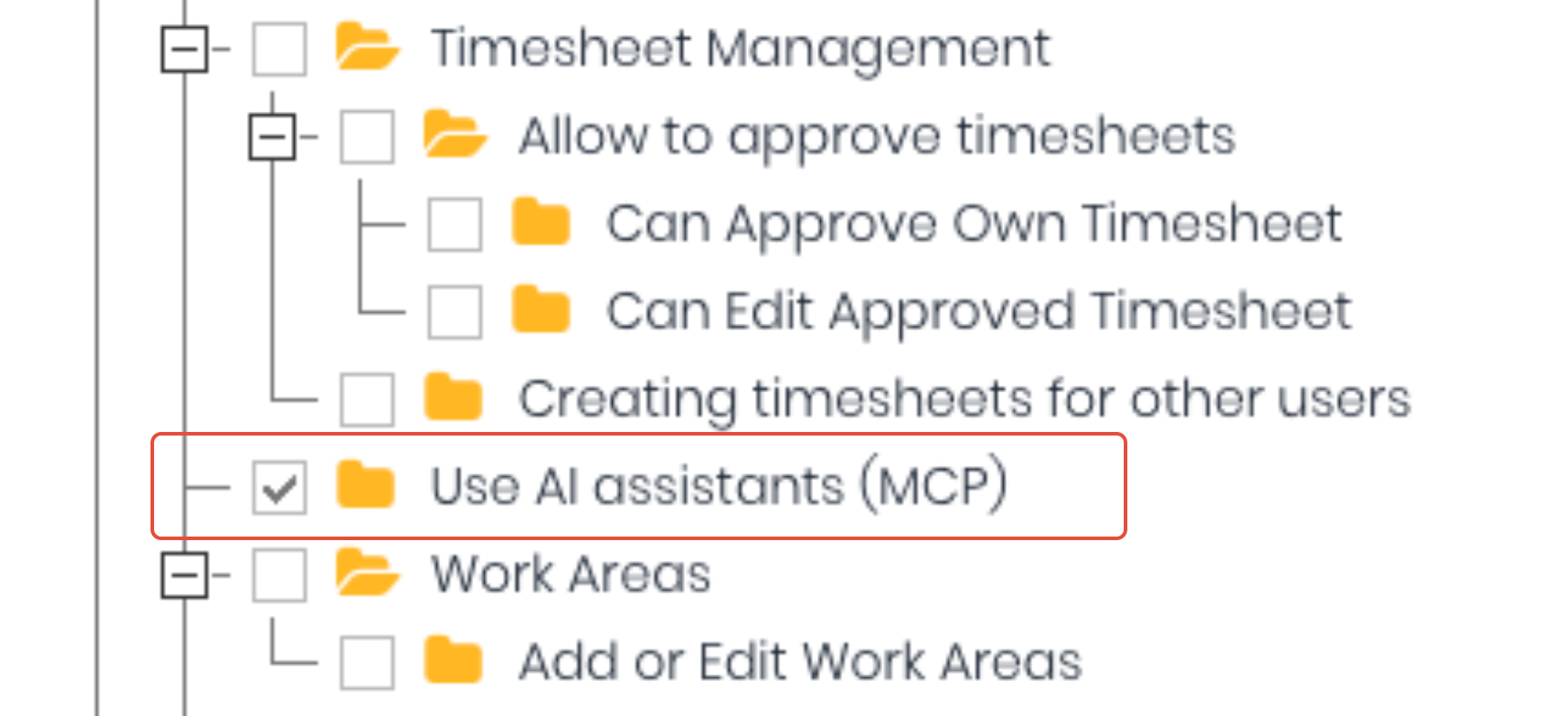
If you haven't already, request to join the MCP Beta by contacting WorkGuru support and ask for AI assistant access to be turned on for your account. Once enabled, choose who can connect. Edit each role that should be allowed and tick the Use AI Assistants (MCP) permission in the Pages tree. Note: The Admin role has it already. Removing it takes effect on the assistant's very next action, so there's nothing to revoke anywhere else.
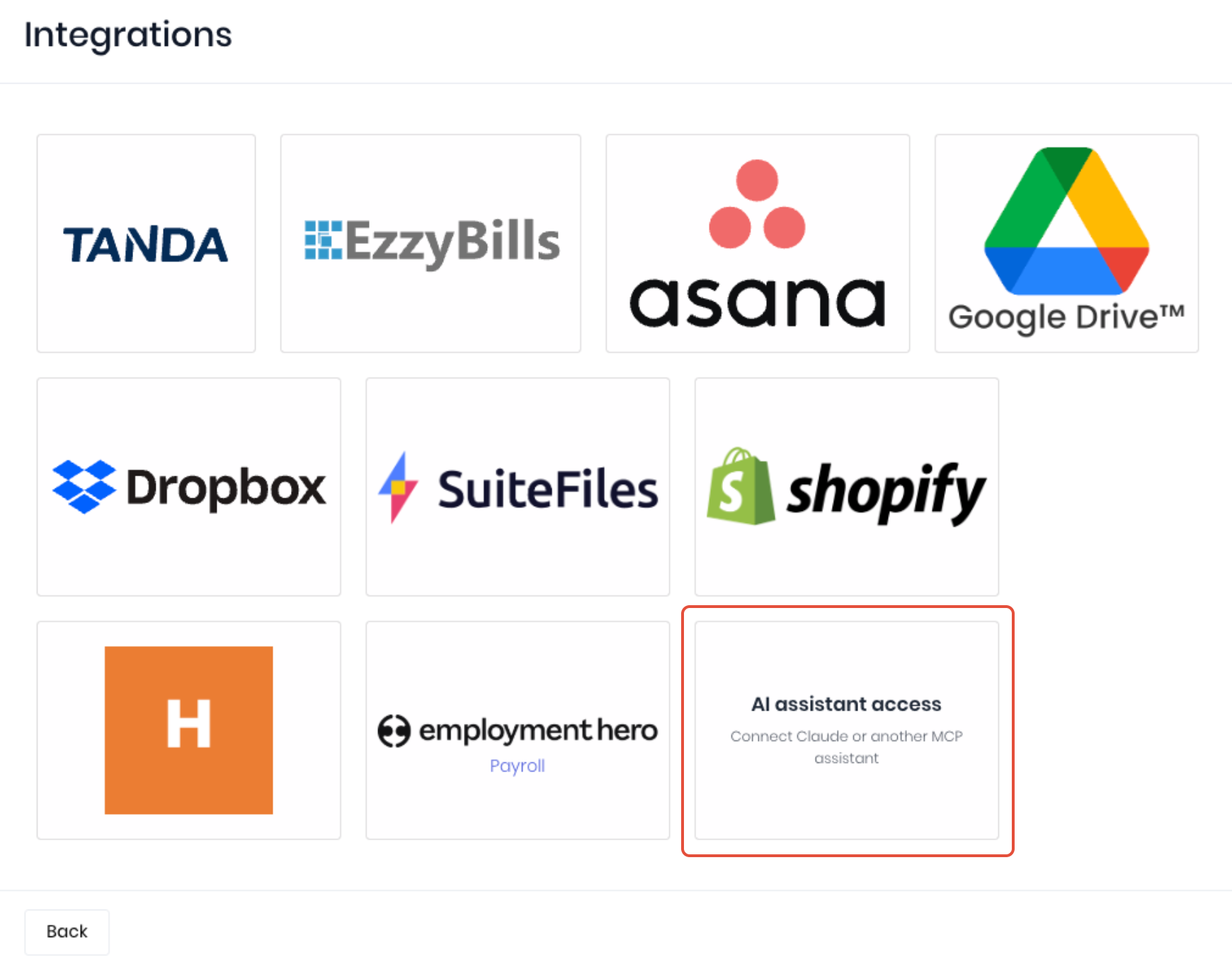
To source the connection information required by ChatGPT, go to the Integrations dashboard and open AI Assistant Access.
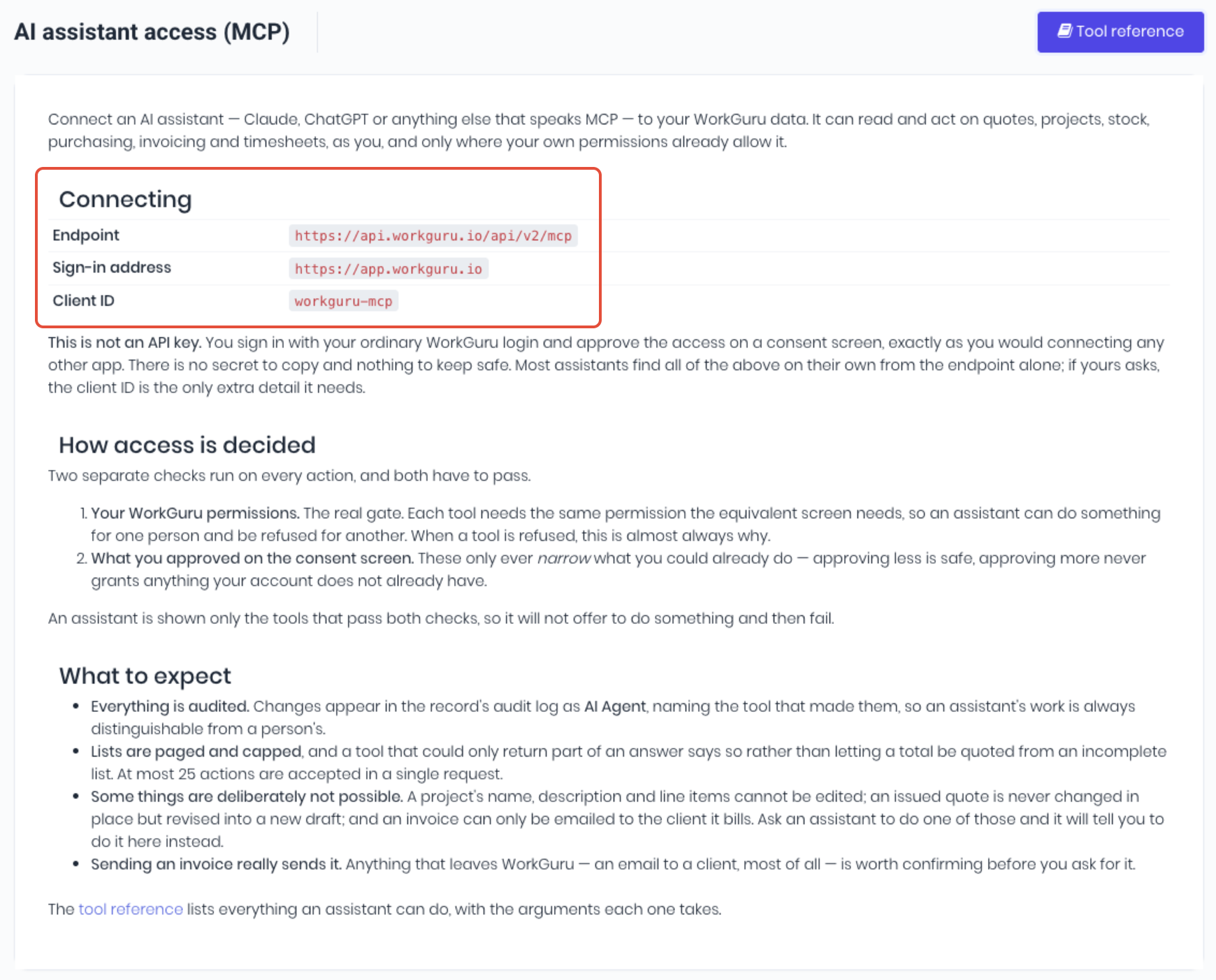
Copy the Endpoint address and the Client ID shown on the AI Assistant Access (MCP) page to use on the ChatGPT side of the connection.
Connect CoPilot
Once you have the Endpoint and Client ID from WorkGuru, sign in to ChatGPT and add a custom connector:
- Register the sign-in in the Teams Developer Portal. The doc has a table of every field: client ID, sign-in, token and refresh addresses, the full scope list, PKCE, and “Any Teams app” so tool calls don’t 404.
- Build a declarative agent in VS Code with the Microsoft 365 Agents Toolkit, give it the MCP address, and attach the registration.
Test the MCP Connection
Check the connection by ensuring the WorkGuru plugin is active and asking Which WorkGuru account am I connected to? Confirm the answer is the correct tenant and user.
Was this article helpful?
That’s Great!
Thank you for your feedback
Sorry! We couldn't be helpful
Thank you for your feedback
Feedback sent
We appreciate your effort and will try to fix the article