Printing a quote template will download a copy to your device in either PDF or .DOCX format for use external to WorKGuru. To print a quote, open the quotes detail page by clicking on the Quote No from the quotes dashboard.
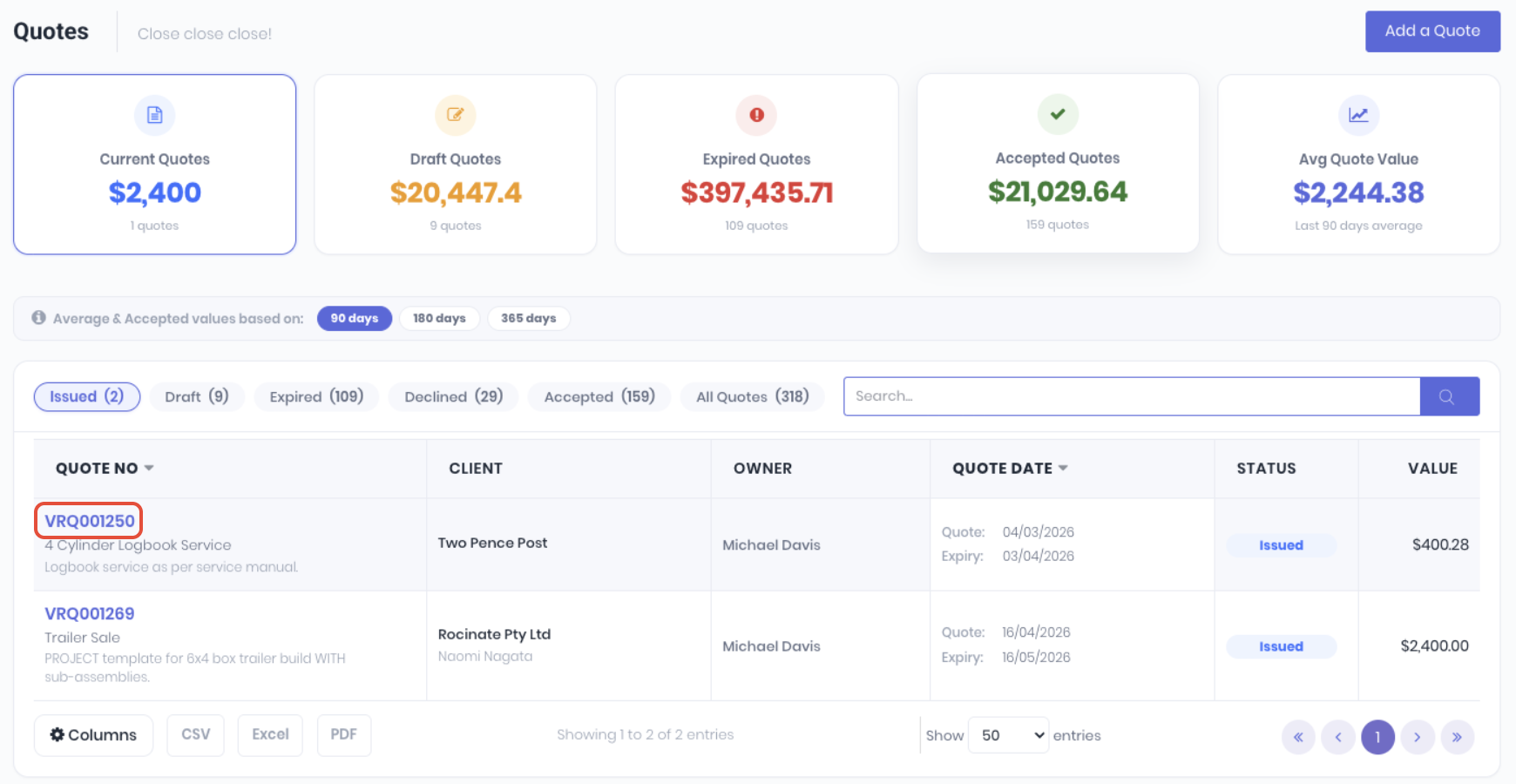
From the option at the bottom of the quote details page, click the Print button.

Select the quote template you would like to use from the dropdown and which format you want it in (PDF or Word). Click Print to generate and download the quote.

The quote will then be downloaded on your device to the file location your browser saves files to (Usually the downloads folder). This file can then be filed, printed, uploaded or emailed as an attachment using the functions on that device. If you are emailing or sending the quote to the client via an external tool, you can click the Mark as Emailed button to manually flag the quote has been sent.

This will display an envelope icon in the quotes dashboard as if it has been emailed directly.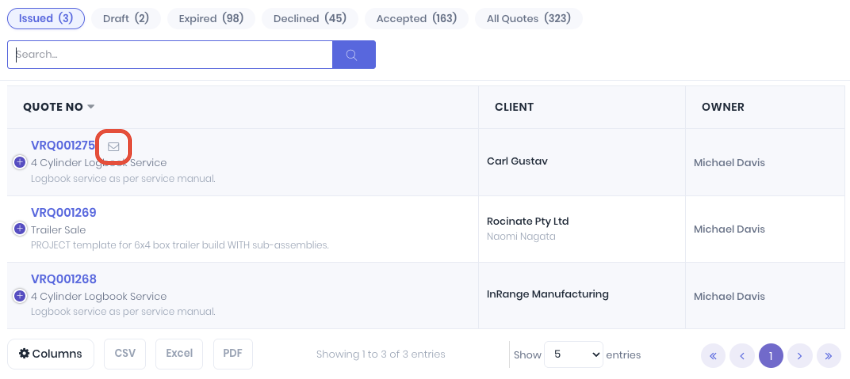
Was this article helpful?
That’s Great!
Thank you for your feedback
Sorry! We couldn't be helpful
Thank you for your feedback
Feedback sent
We appreciate your effort and will try to fix the article