Purchase orders can be reviewed and edited via the mobile application on the go. Access Approved, Draft and Received orders by tapping Purchase Orders from the mobile app menu.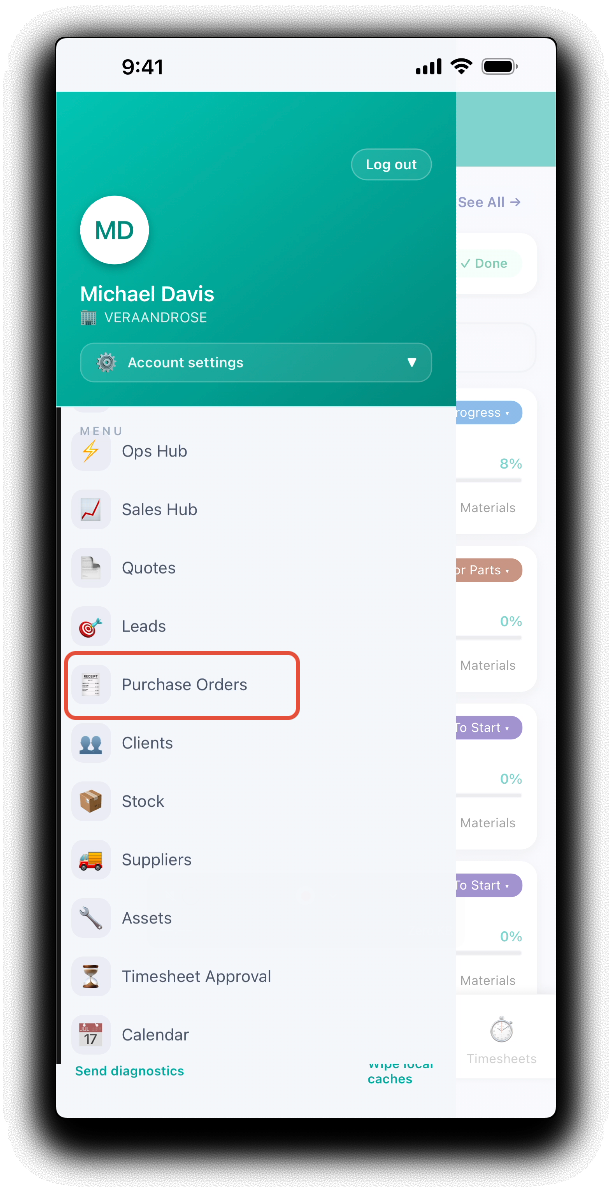
Reviewing Existing Purchase Orders
Fro the mobile purchase order dashboard, Scroll or Search for orders by name or supplier, or display purchases by status by tapping on the Approved, Draft or Received widgets.
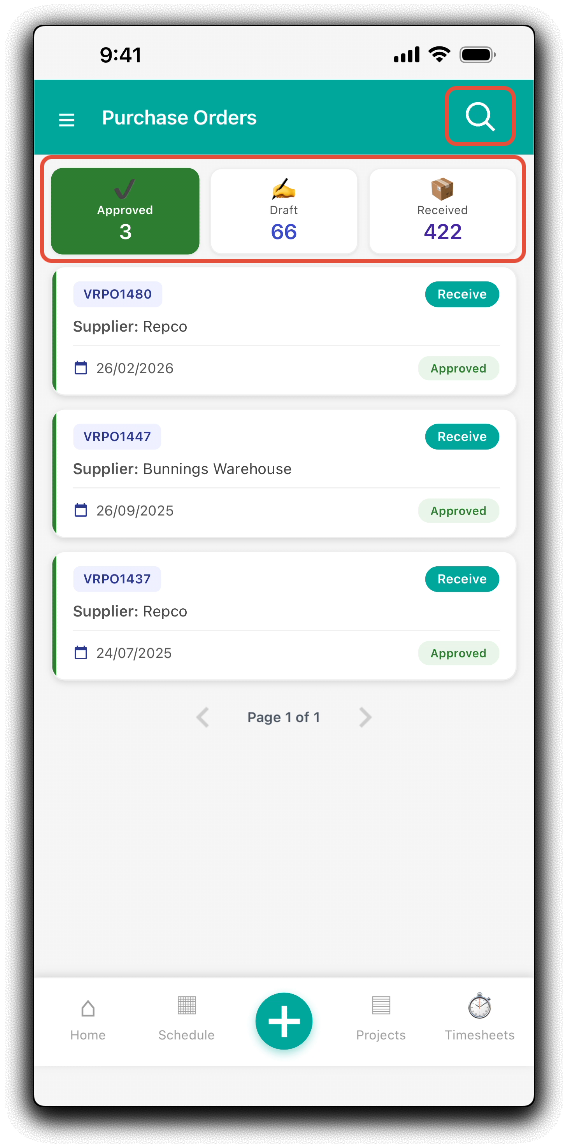
Tapping on the purchase orders's tile will open the order details to review.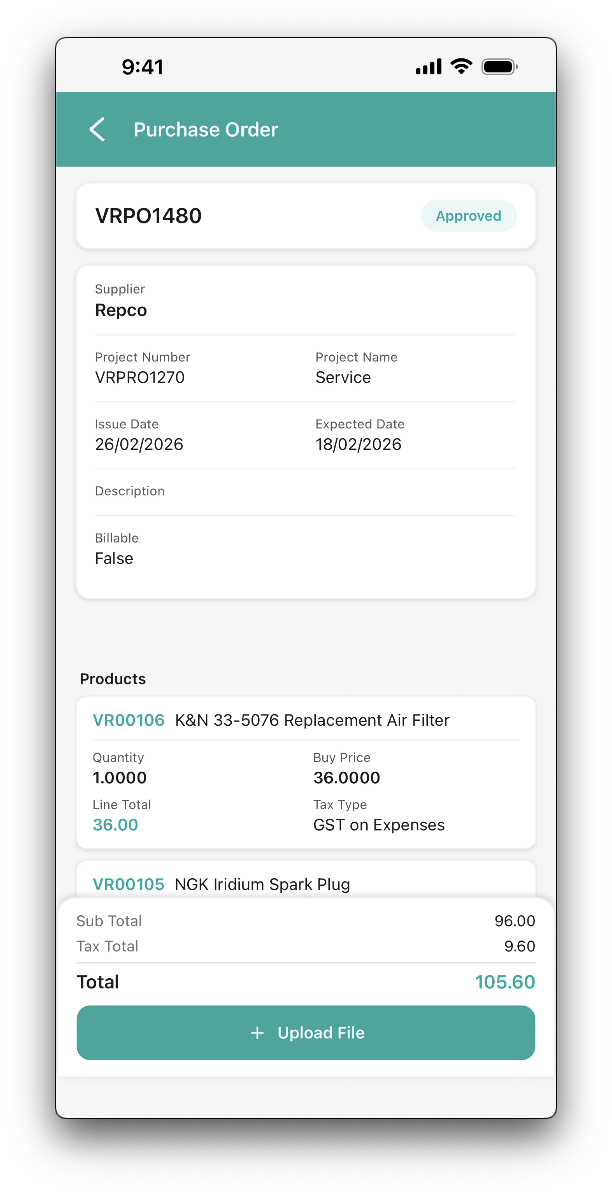
Tap + Upload File to add a file to the purchase order. Tap the plus icon to add a file:
- Take a Photo - Launch the device's camera application if available to upload photo's directly to the project.
- Choose Photo from Gallery - Select exisiting pictures from the device's gallery/camera roll if available.
- Browse Files - Select any file from the device's file system.
Follow your device specific instructions to confirm the upload.
Editing Existing Purchase Orders
Draft purchase orders can be edited with the mobile app. From the mobile app purchase order dashboard, tap the Draft widget and then Search or scroll for the required purchase order. Tap the pencil icon to open the purchase order details.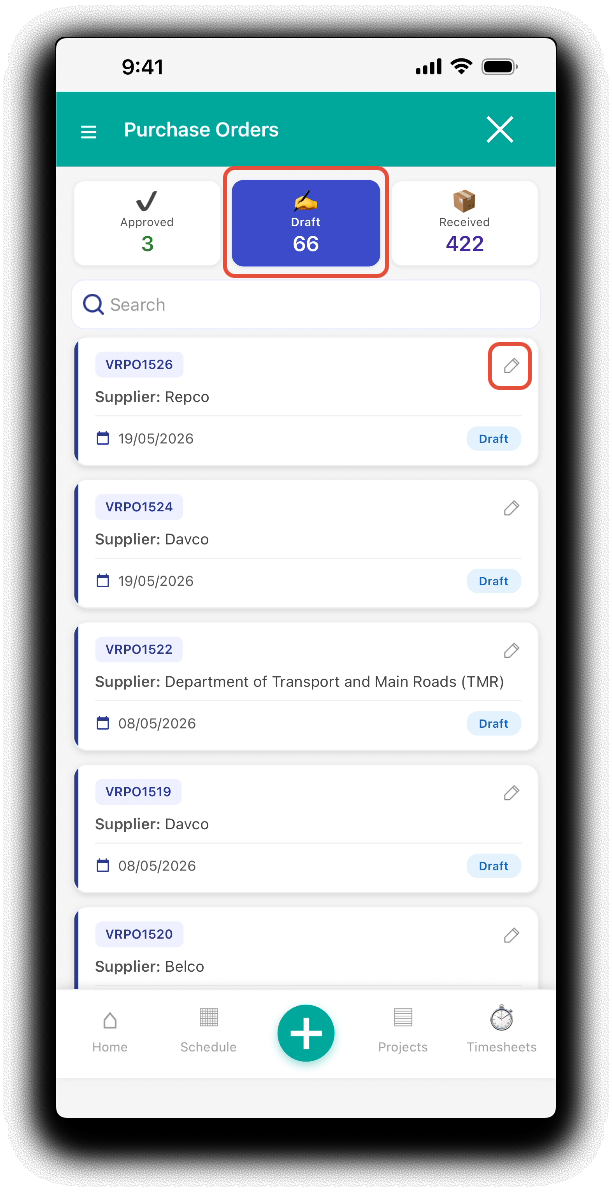
In the Create tab, update fields as required and tap Continue to apply tab changes.
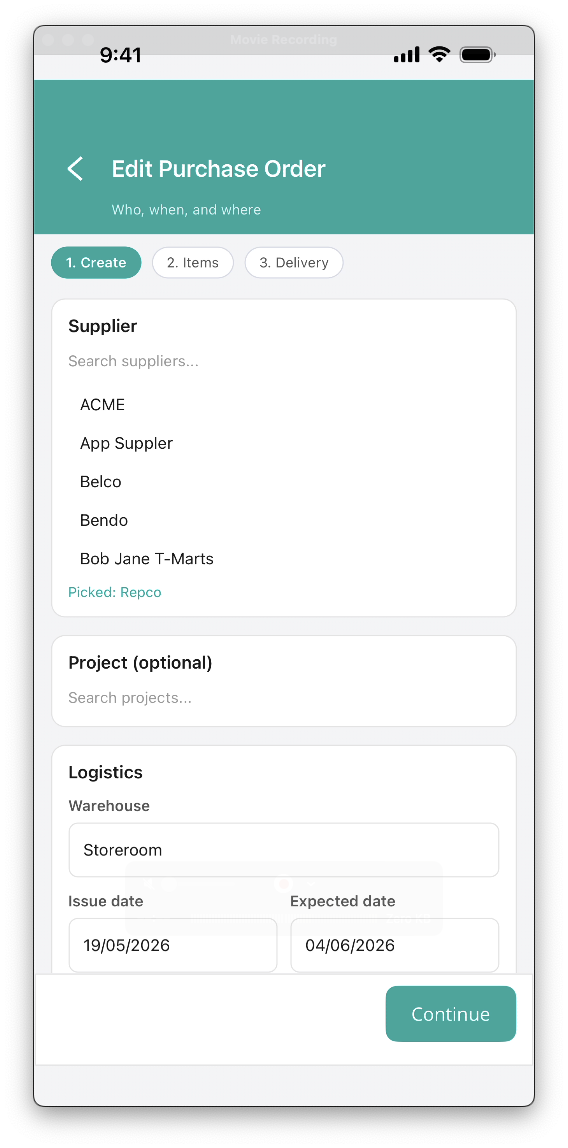
- Supplier - Scroll or Search to update.
- Project - Search for a project to switch to a project purchase order
- Logistics
- Warehouse - Switch stock location
- Issue Date - Update date issued
- Expected Date - Update expected arrival date
- PO Number (opitonal) - Update default order reference
- Billable - Toggle order billable status with the slider.
In the Items tab, update fields as required and tap Continue to apply tab changes.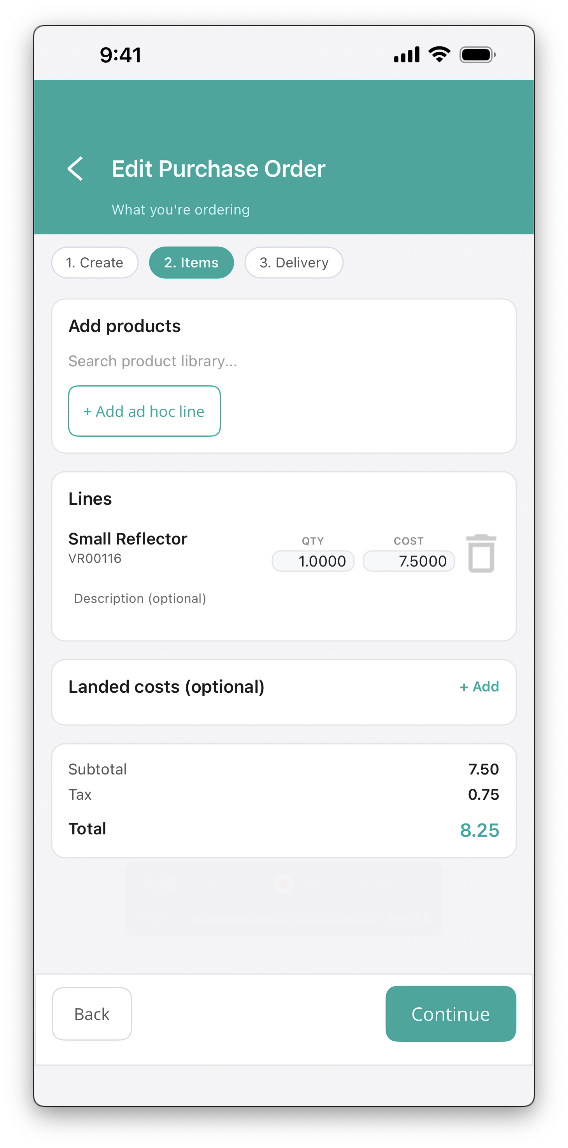
- Add Products - Search product library to add more products to the order. Or Add ad hoc line to add a product not in your library.
- Lines - Update product line quantity and costs or delete line completely.
- Landed Costs (Optional) - Update landed costs or tap +Add to new costs.
In the Delivery tab, update fields as required. Tap Save to save changes to the order as a draft or tap Save & Approve to save changes and update order status to Approved, ready to receive.
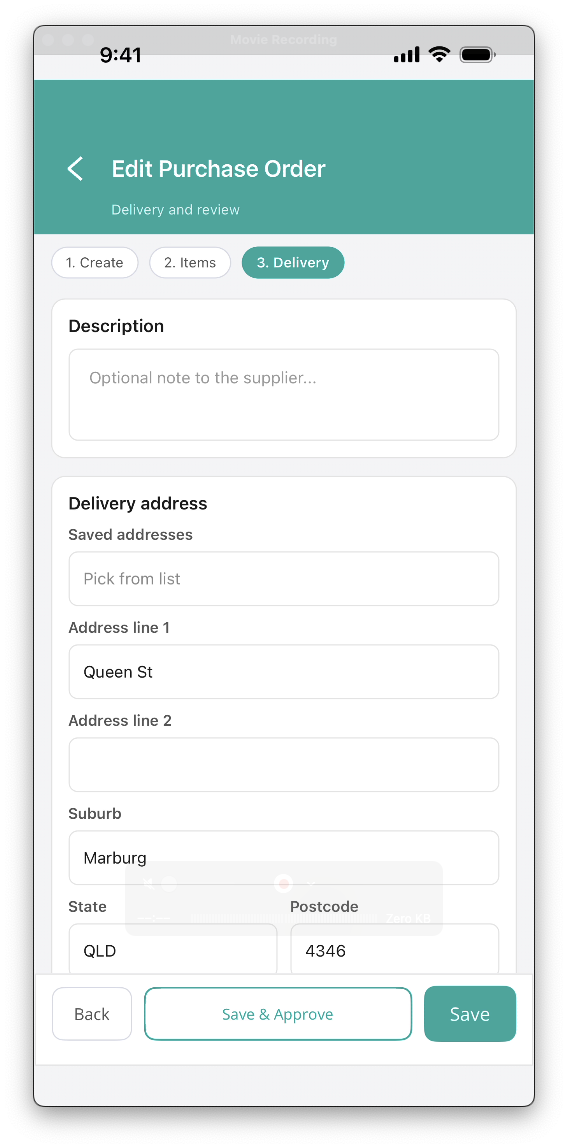
- Description - Update order description
- Delivery Address- Update address fields as requred.
- Saved Addresses - Update or select saved delivery addresses from the dropdown.
- Address line 1
- Address line 2
- Suburb
- State
- Postocde
- Delivery Instructions
You can tap Back to switch to previous tabs as required.
Was this article helpful?
That’s Great!
Thank you for your feedback
Sorry! We couldn't be helpful
Thank you for your feedback
Feedback sent
We appreciate your effort and will try to fix the article