If your workflow requires the capture of the duration of non-billable breaks such as lunch etc, you can enable a break button in the kiosk that can be assigned to a default non-billable task. Note: Timesheet breaks are only available if the Daily timesheet mode is active.
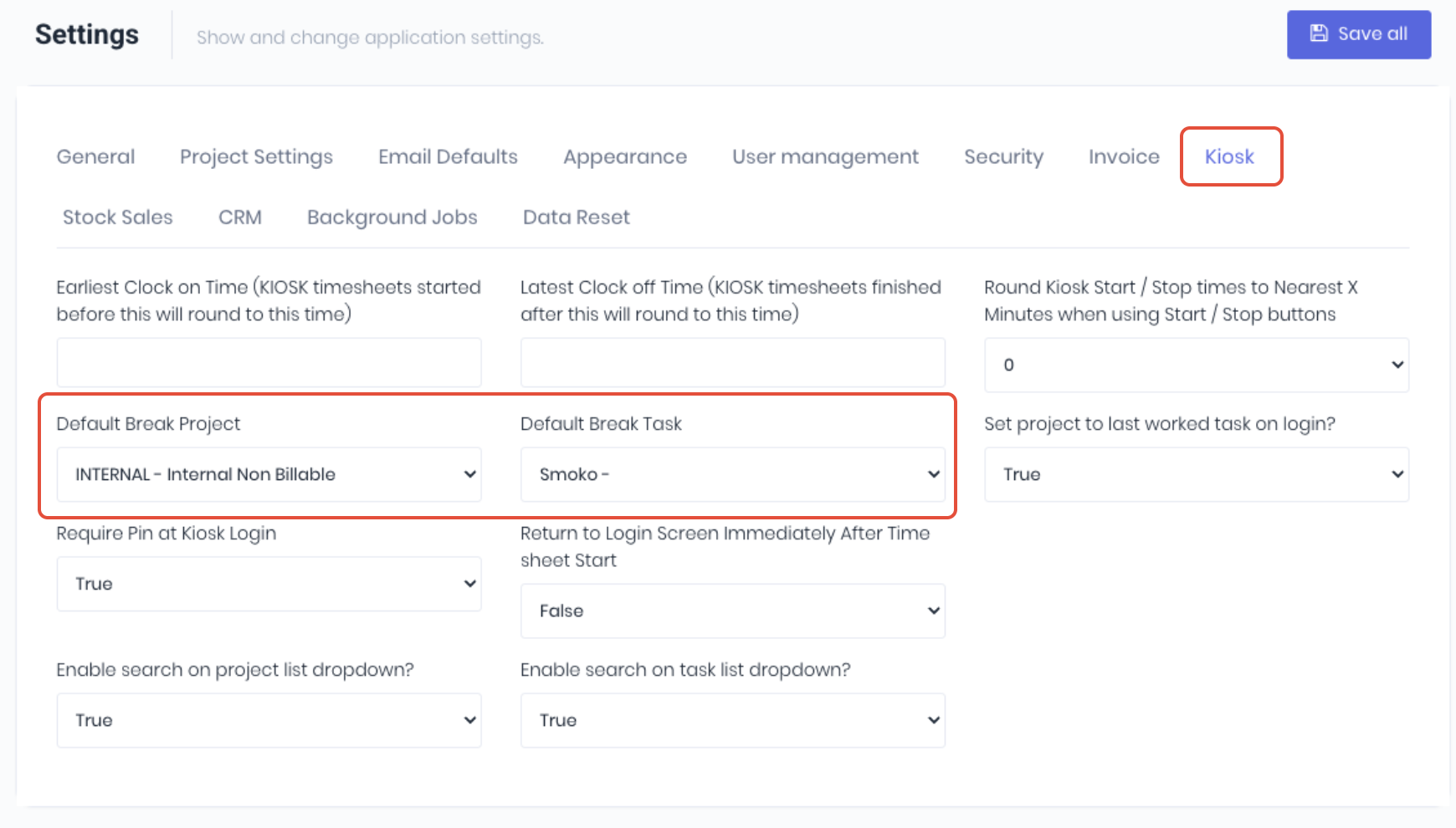
In the Kiosk tab of the settings (Administration -> Settings), select the non-billable task you would like to use to track your breaks in the Default Break Project and Default Break Task dropdowns. Click Save All to apply the kiosk settings.
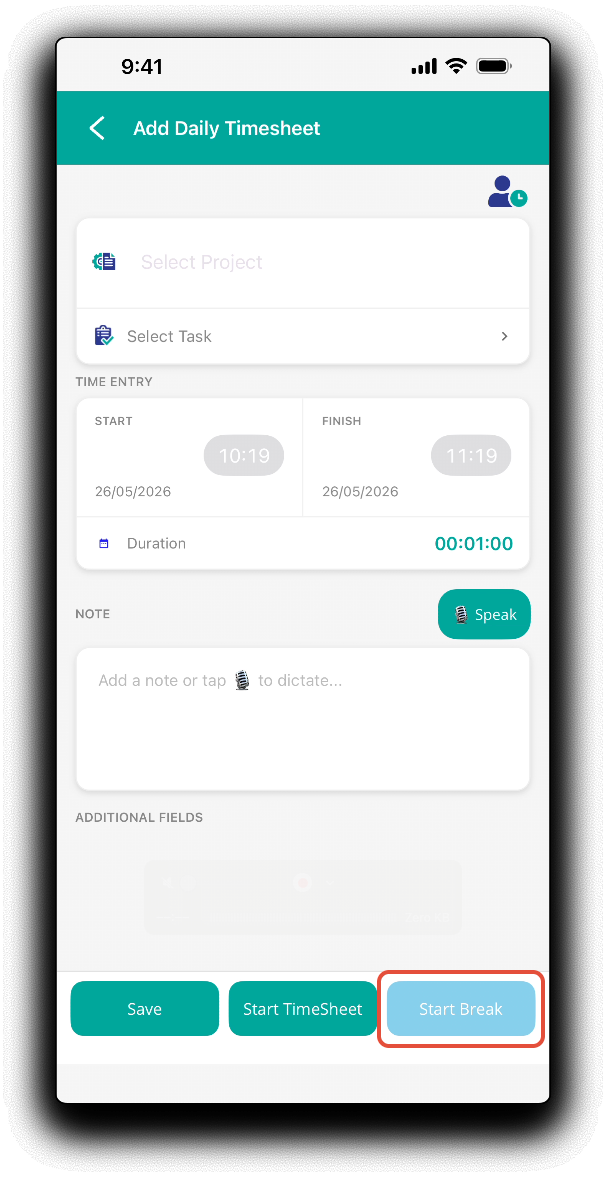
To add a break, simply add a daily timesheet without selecting a project and task and tap Start Break. Note: If the start break button is not available, the default break project and task settings haven't been saved correctly.
A timer will immediately start a timesheet timer for the specified break task.
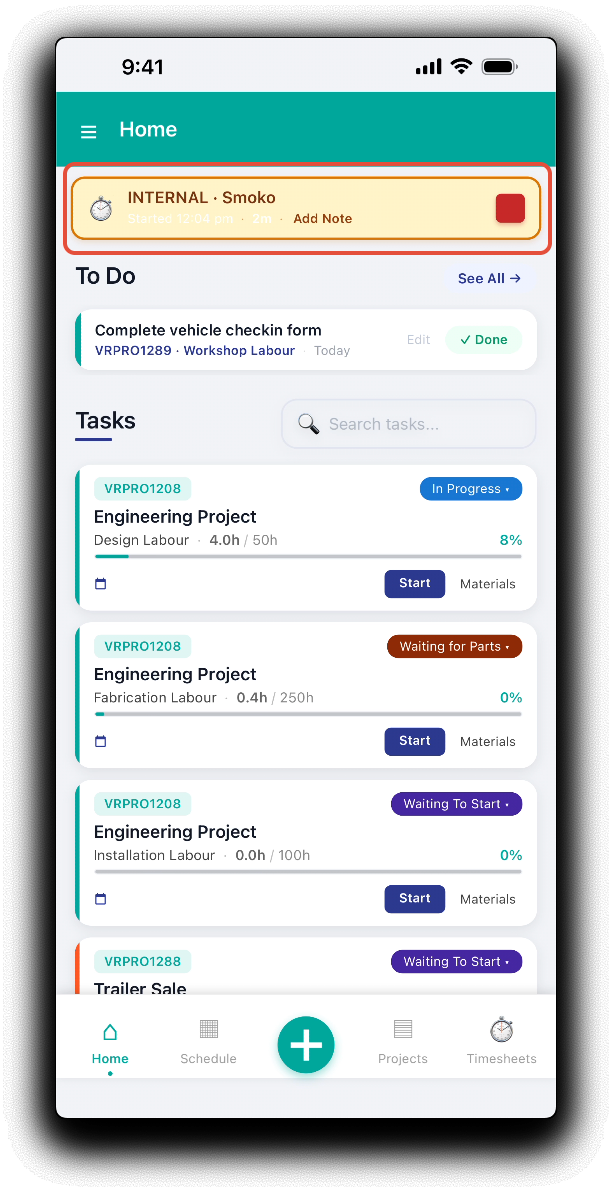
Stop and save the break timer when you have finished your break and then resume a billable timer on the next relevant post break project and task.
Was this article helpful?
That’s Great!
Thank you for your feedback
Sorry! We couldn't be helpful
Thank you for your feedback
Feedback sent
We appreciate your effort and will try to fix the article