Phase fields allow you to display phase information from Quotes, Projects and Invoices in WorkGuru document templates. There are two phase table types available:
- Phase Summary Table Fields - Displays a summary of each phase and its value
- Phase Details Table Fields- Displays the details of each phase, via a nested Product, Task and Purchase table.
Document Compatibility
The Phase Table fields are supported on the documents that support phase line items:
Quotes - see Quote Document Templates
Projects (Phase Summary Table Only) - see Project Document Templates
Invoices - see Invoice Document Templates
Phase fields are table fields, meaning they must be placed inside a correctly configured table in your Word document template. Merge fields and table Alt Text are case sensitive and must be entered exactly as shown below.
Setting Up Phase Tables
Phase fields are table fields and must be placed inside a correctly configured table in your Word document template.
The table requires:
- A header row
- A repetition line row containing your merge fields, including nested tables for Phase Details.
- The correct Alt Text Description:
- For a Phase Summary table, set the table Alt Text Description to:
- PhaseSummary
- For a Phase Details table, set the table Alt Text Description to:
- PhaseDetails
- When using Phase Details with supported nested Products, Tasks or Purchases, each nested table must also have its corresponding Alt Text configured:
- Nested product table - Products
- Nested task table - Tasks
- Nested purchase table - Purchases
- For a Phase Summary table, set the table Alt Text Description to:
Phase fields must be placed inside a table in your document template. WorkGuru uses the table to automatically repeat the row for each applicable product line on the transaction. For detailed instructions, see Table Field Setup in WorkGuru Document Templates.
Phase Summary Table Fields
The Phase Summary table provides a simple overview of the phases associated with a Quote, Project or Project Invoice.
| Description | Merge Field | Notes |
|---|---|---|
| Phase Name | [PhaseName] | |
| Phase Value | [PhaseValue] | |
| Total Invoiced Amount | [PhaseInvoiceValue] | Invoices Only |
| Total Invoiced Percentage (%) | [PhaseInvoicePercentage] | Invoices Only |
Phase Details Table Fields
The Phase Details table provides more detailed phase information and supports nested tables for displaying the Products, Tasks and Purchases associated with each phase on Quotes and Project Invoice Document Templates. Note: You MUST have nested table present for Phase Details to display.
| Description | Merge Field | Notes |
|---|---|---|
| Phase Name | [PhaseName] | |
| Total Phase Value Including Options | [PhaseValue] | |
| Total Invoiced Amount | [PhaseInvoiceValue] | Invoices Only |
| Total Invoiced Percentage (%) | [PhaseInvoicePercentage] | Invoices Only |
| Total Value Excluding Options | [PhaseBaseValue] | Quotes Only |
| Total Value of Options Only | [PhaseOptionsValue] | Quotes Only |
When using the Phase Details table, there are three fields available for displaying the value of a phase. This allows you to choose whether your document displays the complete phase value, the base value or the value of optional items separately.
Phase Details Nested Tables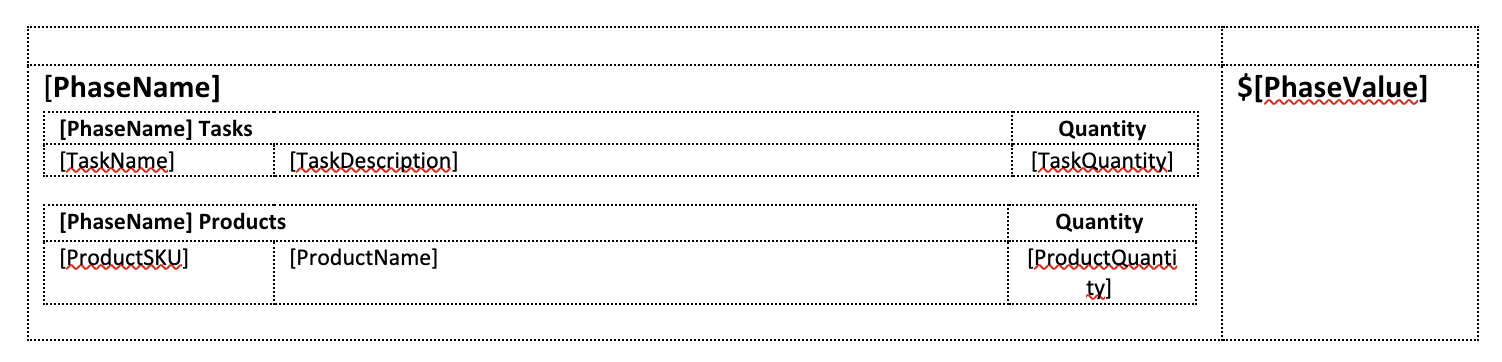 The PhaseDetails table supports nested tables. A nested table is a table placed inside the Phase Details table so that line items can be grouped and displayed underneath their relevant phase. The supported nested table types are:
- Products - see Product Table Field Reference
- Tasks - see Task Table Field Reference
- Purchases -see Purchase Table Field Reference
When using Phase Details with nested Products, Tasks or Purchases, each nested table must also have its corresponding Alt Text configured.
For example:
- Outer phase table – PhaseDetails
- Nested product table – Products
- Nested task table – Tasks
- Nested purchase table – Purchases
Because PhaseDetails can contain nested tables, complex templates may not always convert cleanly to PDF.
If a Phase Details table is formatted incorrectly when printed directly to PDF, try:
- Printing the document from WorkGuru as a DOCX file.
- Opening the document in Microsoft Word.
- Converting or saving the document as a PDF from Word.
This can provide better results for complex nested table layouts.
Troubleshooting
Table Does Not Populate
Check that:
- The Alt Text Description is correct.
- Capitalisation matches the required table name - alt text descriptions are case sensitive.
- There is only one table of the same type on the document.
- The table is supported by the document type.
- There is applicable data to display.
- The table has a header
- Phase Details table has a nested table present.
Merge Fields Appear in the Generated Document
If fields such as [ToDoName] appear instead of actual values, check:
- The spelling of the merge field.
- Check capitalisation - merge fields are case sensitive.
- Confirm the field belongs to the table type being used.
- Confirm the field is supported by the document type.
Table Formatting Is Incorrect
Check that:
- Header and repetition row columns align.
- Cells have not been incorrectly merged.
- Nested tables are configured correctly.
- Each table has the correct Alt Text Description.
Was this article helpful?
That’s Great!
Thank you for your feedback
Sorry! We couldn't be helpful
Thank you for your feedback
Feedback sent
We appreciate your effort and will try to fix the article