You can print and email quotes directly out of WorkGuru, or print and mark as sent if using an external email client such as Outlook or Gmail. You can print or email a quote in any state.
Emailing from WorkGuru
Open the quotes detail page by clicking on the quote number from the quotes dashboard. From the option at the bottom of the quote details page, click the Email Quote button.

To email your quote, click on Email to Client. Scroll to the bottom of the quote summary to compose the email. You can automate/pre-fill this screen by setting up your email templates.
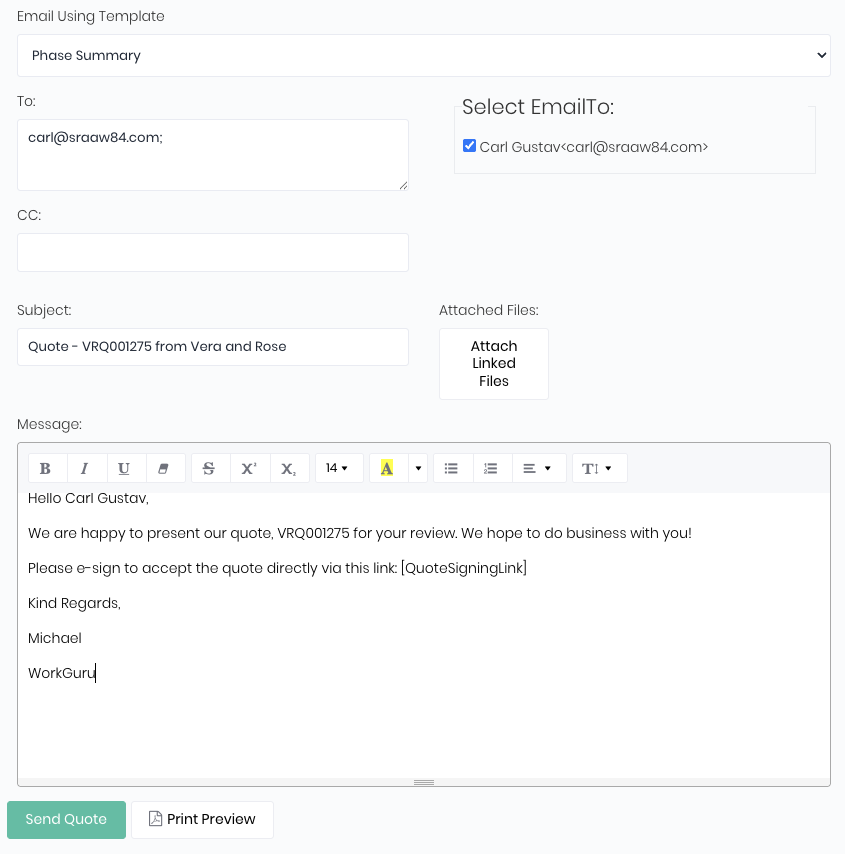
- Email Using Template - Select the required quote document template
- To - Enter or choose the recipient email from the Select Email To list.
- Select Email To - The client and contact email addresses saved against the clients card will display in the Select Email To: list.
- CC - Email CC will default to the logged in WorkGuru staff email. This is handy to confirm the email was sent successfully.
- Subject - Templated subject line, update as required.
- Attach Linked Files - Attached any files that have been stored in the quote's Files tab.
- Message - Email body, text can be templated with populated fields via email templates
- Print Preview - Preview the quote with the selected document template
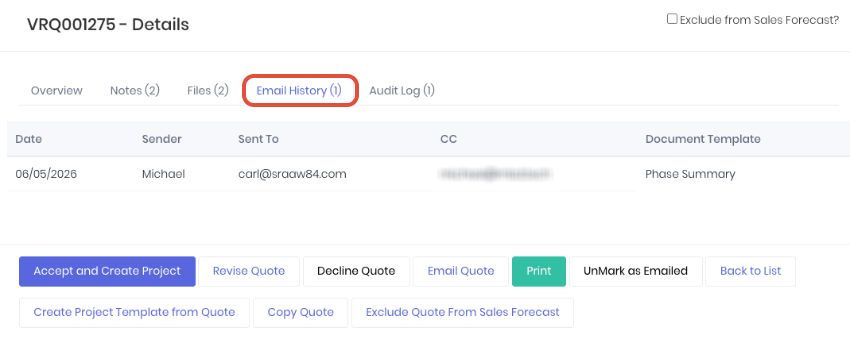
Click Send Quote to send to the client/recipients. You will see a prompt saying Quote has successfully emailed!, or a message if there is any issues sending with the relevant details. The email will then be logged in the quote's Email History tab available in the quote detail page.
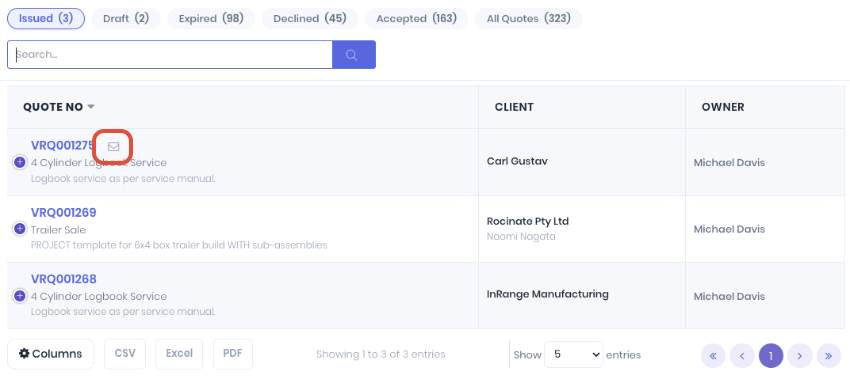
A envelope icon is also added next to the quote number in the quote dashboard to indicate it has been sent.
Emailing from an External Email Client
If you prefer to send the quote via an external email client such as Outlook or Gmail etc, Print the quote to download a copy to attach to the email. You can still display the quote as sent in WorkGuru by clicking Mark as Emailed. This will display the envelope icon on the quote detail page, but will not log the email details in the Email History Tab.

Was this article helpful?
That’s Great!
Thank you for your feedback
Sorry! We couldn't be helpful
Thank you for your feedback
Feedback sent
We appreciate your effort and will try to fix the article