Clients and Contacts can be managed from the client dashboard.
Client Dashboard
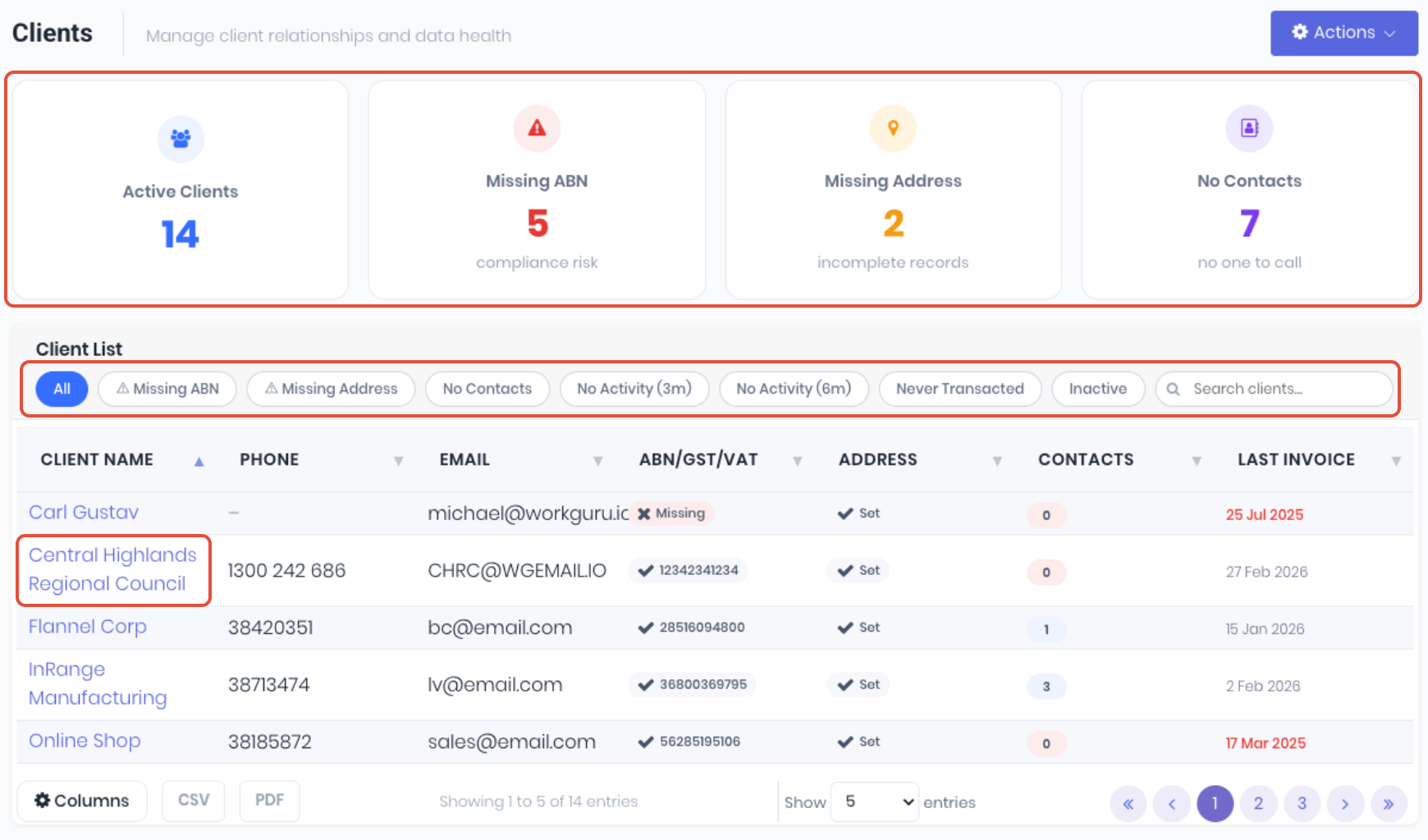
The client dashboard is optimised to display as much relevant information as possible, such as missing information like ABNs and addresses etc, to help you get the most of your client list. Click on the shortcut widgets to highlight your clients based on Active Clients, Missing ABN, Missing Address or No Contacts. The client list can also be set to display based on:
- All - Display all active clients.
- Missing ABN - Clients without an ABN number.
- Missing Address - Clients without an address.
- No Contacts - Clients without any contacts.
- No Activity (3m) - Clients with no transaction history within the last 3 months.
- No Activity (6m) - Clients with no transaction history within the last 6 months.
- Never Transacted - Clients with no transaction history.
- Inactive - Display all inactive clients.
Search directly for a client or contact using the the Search field. Click on a Client Name to open the client details page.
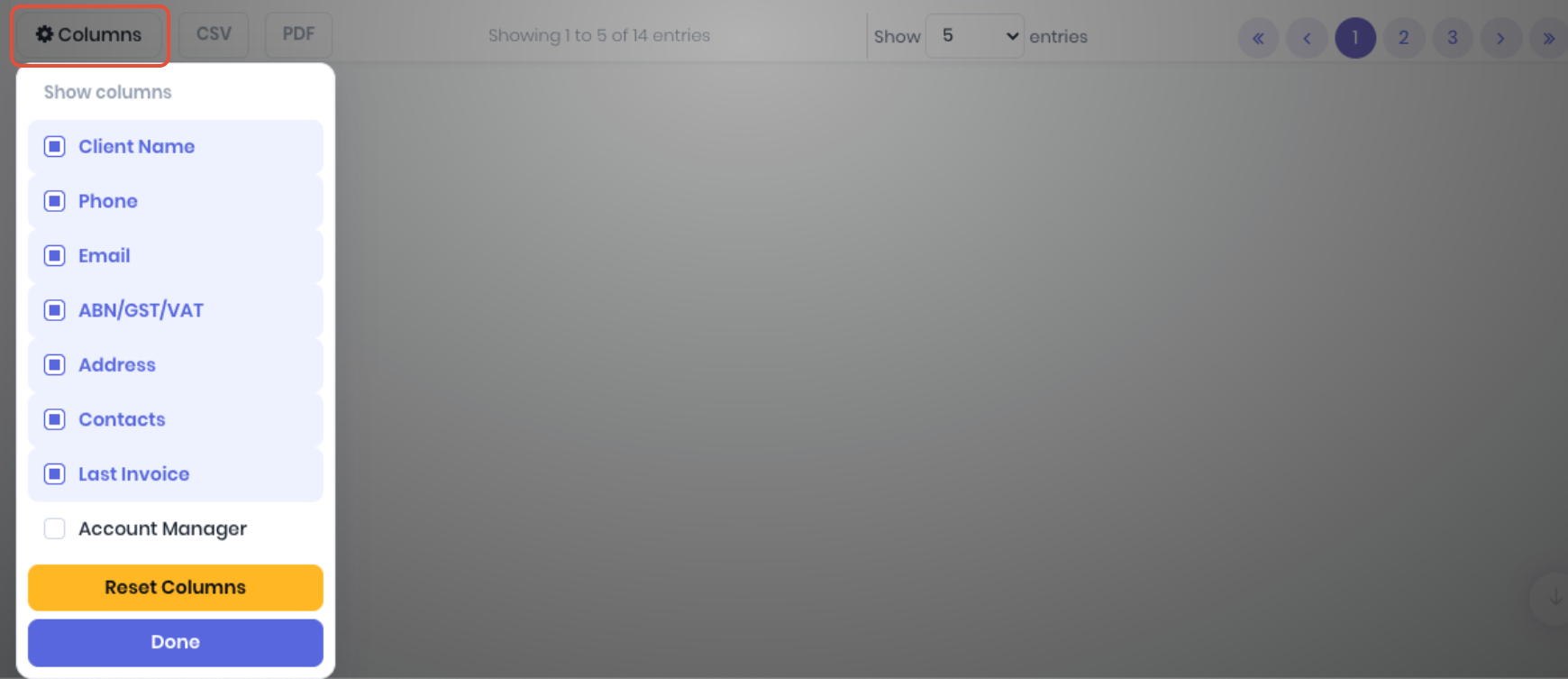
You can customise the Client List by dragging and dropping the columns by their headers to re-order, or click on the Columns button in the footer to show or hide columns as required. Select the required columns and click Done to apply. Reset Columns resets the client list back to defaults. Clicking off the popup menu will cancel.
Additional functionality to manage your clients is located in thee Actions tab:
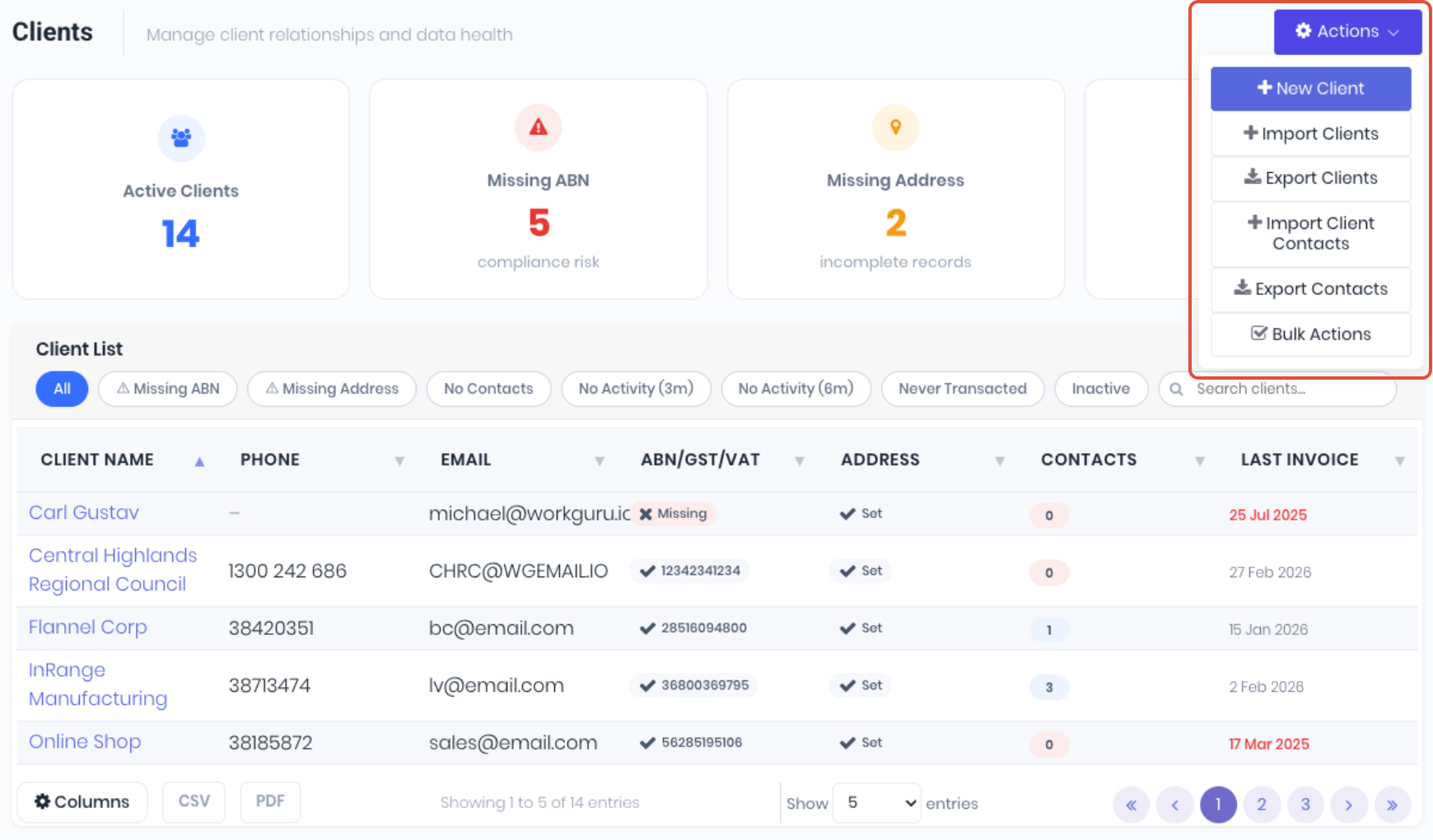
- New Client - Add a new client.
- Import Clients - Import and/or update multiple clients from an import template.
- Export Clients - Export full list of clients.
- Import Client Contacts - Import multiple contacts from an import template.
- Export Contacts - Export full list of client contacts.
- Bulk Actions- Enable multiple selection check boxes to process bulk actions such as:
- Assign Account Manager.
Client Details
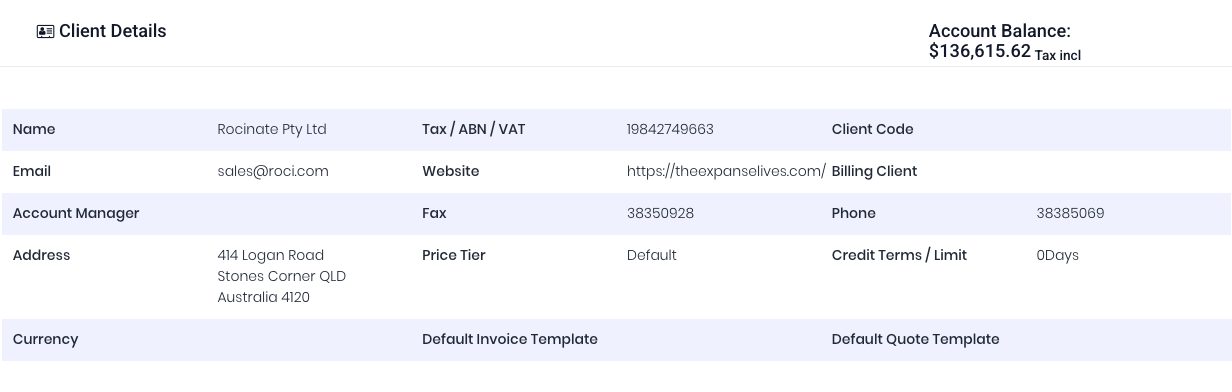
Clicking on the client name from the client dashboard will open the client detail page which displays the client and contacts overview, transaction history and management functions.
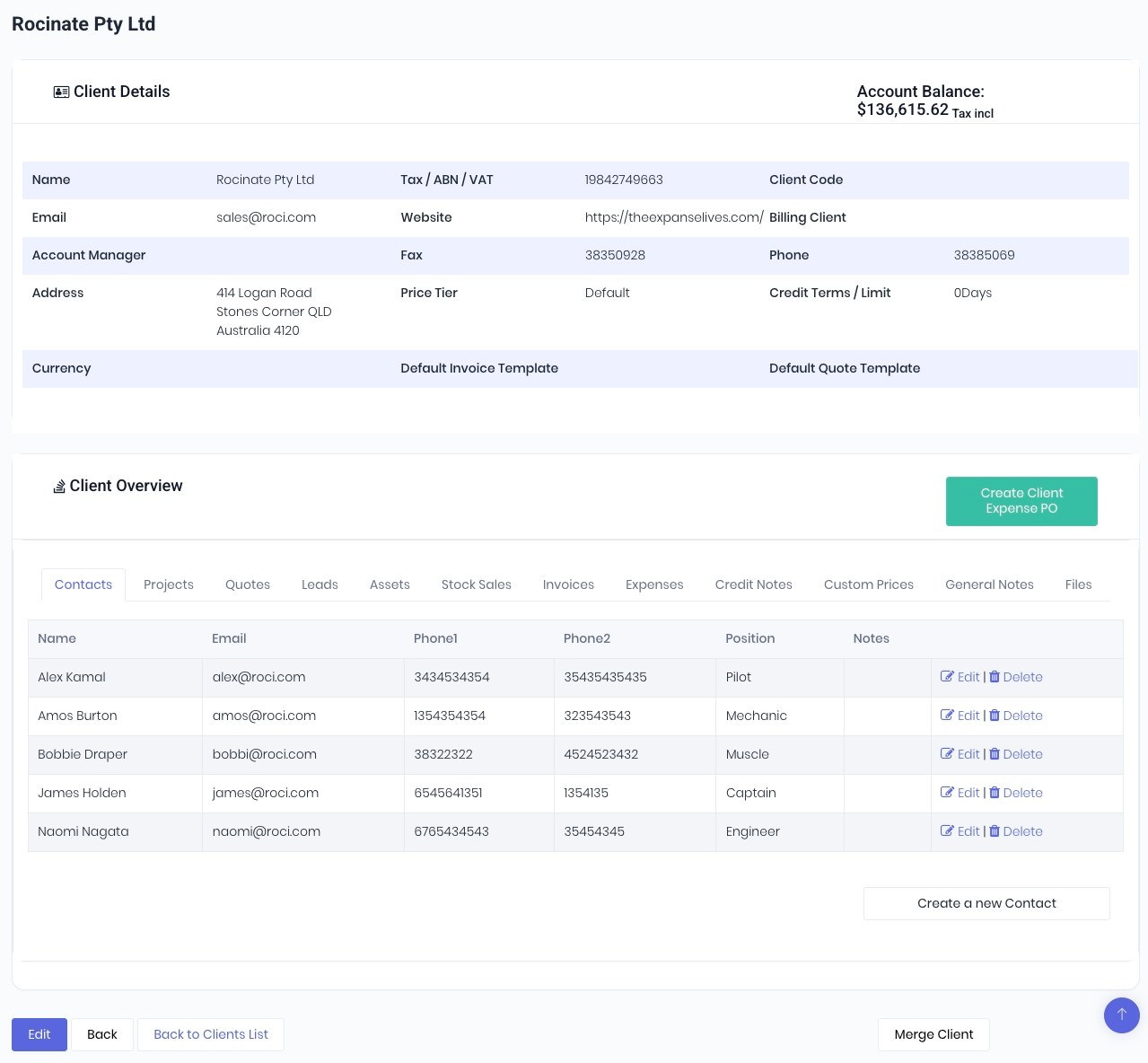
The Client Details section displays client information and current account balance in WorkGuru. Account Balance itself is made up of the balances of invoices without a payment applied to the full amount - this is not to be treated as a source of truth, as users should still be using their accounting software when it comes to returning financial information.
The accounting
The Client Overview section displays the client's contacts, transactional history and uploaded information.
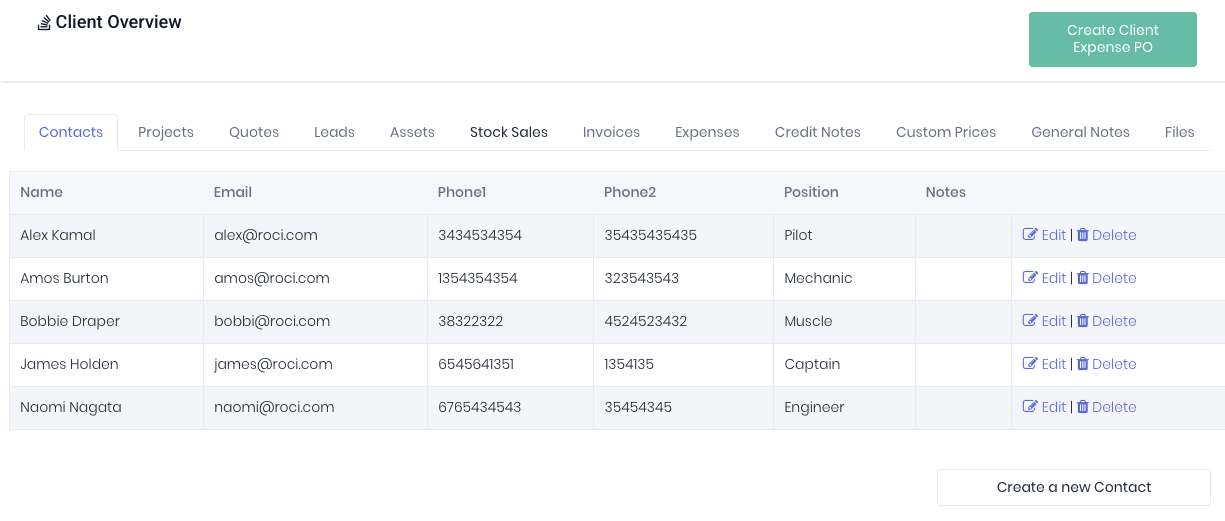
- Contacts - List and create new client contacts.
- Projects - Client project history, including a shortcut to Add a New Project pre-filled with the client details.
- Quotes - Client quote history, including a shortcut to Add A new Quote pre-filled with the client details.
- Leads - Client lead history.
- Assets - List of assets assigned to the client.
- Stock Sales - Client stock sale history, including a shortcut to Add a New Stock Sale pre-filled with the client details.
- Invoices - Client invoice history.
- Expenses - List of client expense purchase orders.
- Credit Notes - Client credit note history.
- Custom Prices - List of products assigned with client specific pricing.
- General Notes - List of text notes added to the client.
- Files - List of files added to the client.
Additional functions available on the client details page are:
- Edit - Update client and contact details.
- Create Client Expense PO - Add client expense purchases for client based cost accounting workflows.
- Merge Client - Merge duplicate clients together without losing history.
Was this article helpful?
That’s Great!
Thank you for your feedback
Sorry! We couldn't be helpful
Thank you for your feedback
Feedback sent
We appreciate your effort and will try to fix the article