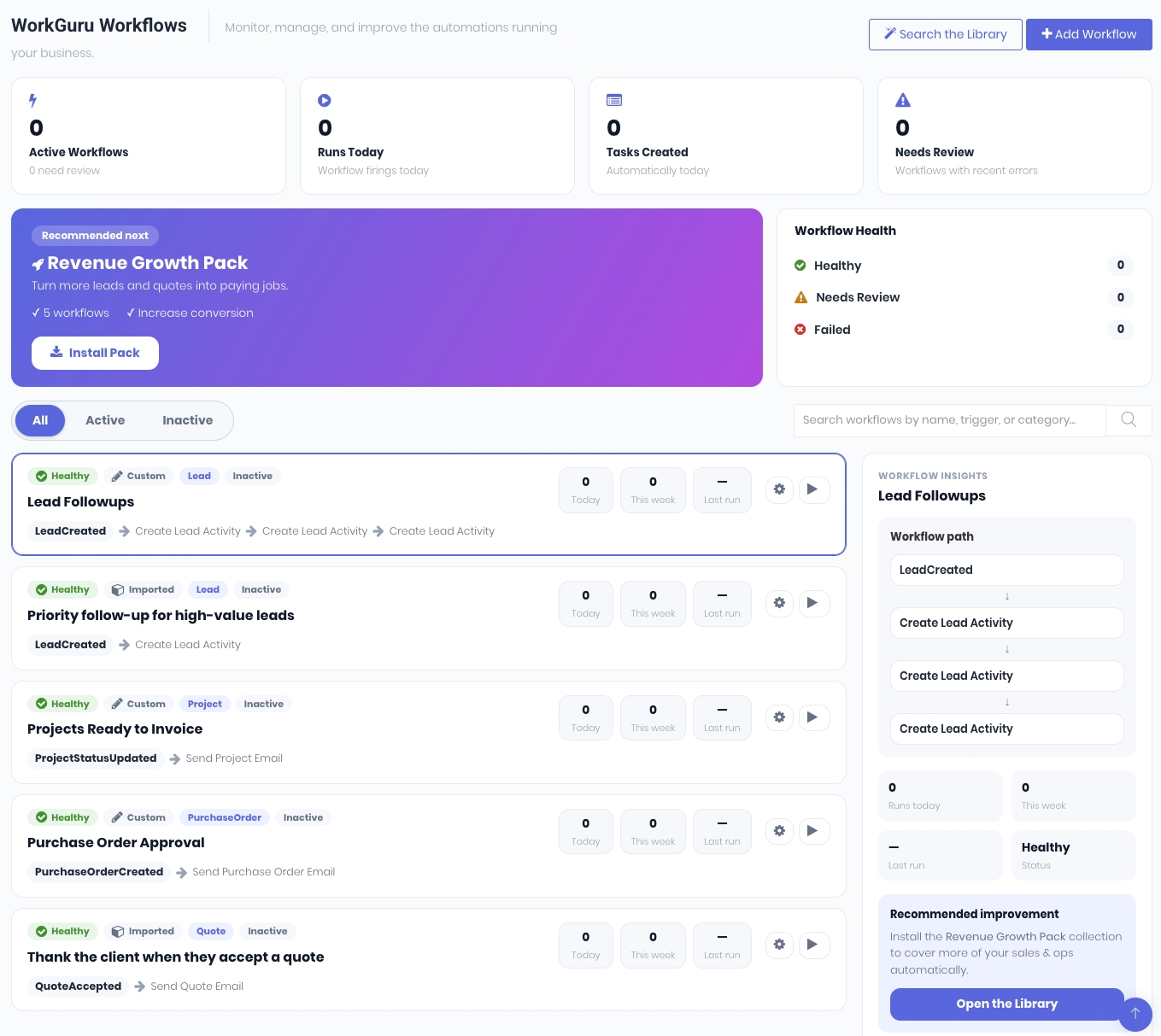
WorkGuru workflows automate the routine jobs you'd otherwise do by hand. A workflow watches for something to happen — a lead arriving, a quote being accepted, a task falling overdue — and then carries out one or more actions for you, such as sending an email, raising an invoice or creating a task.
The three parts of every workflow
Every workflow is built from the same three pieces:
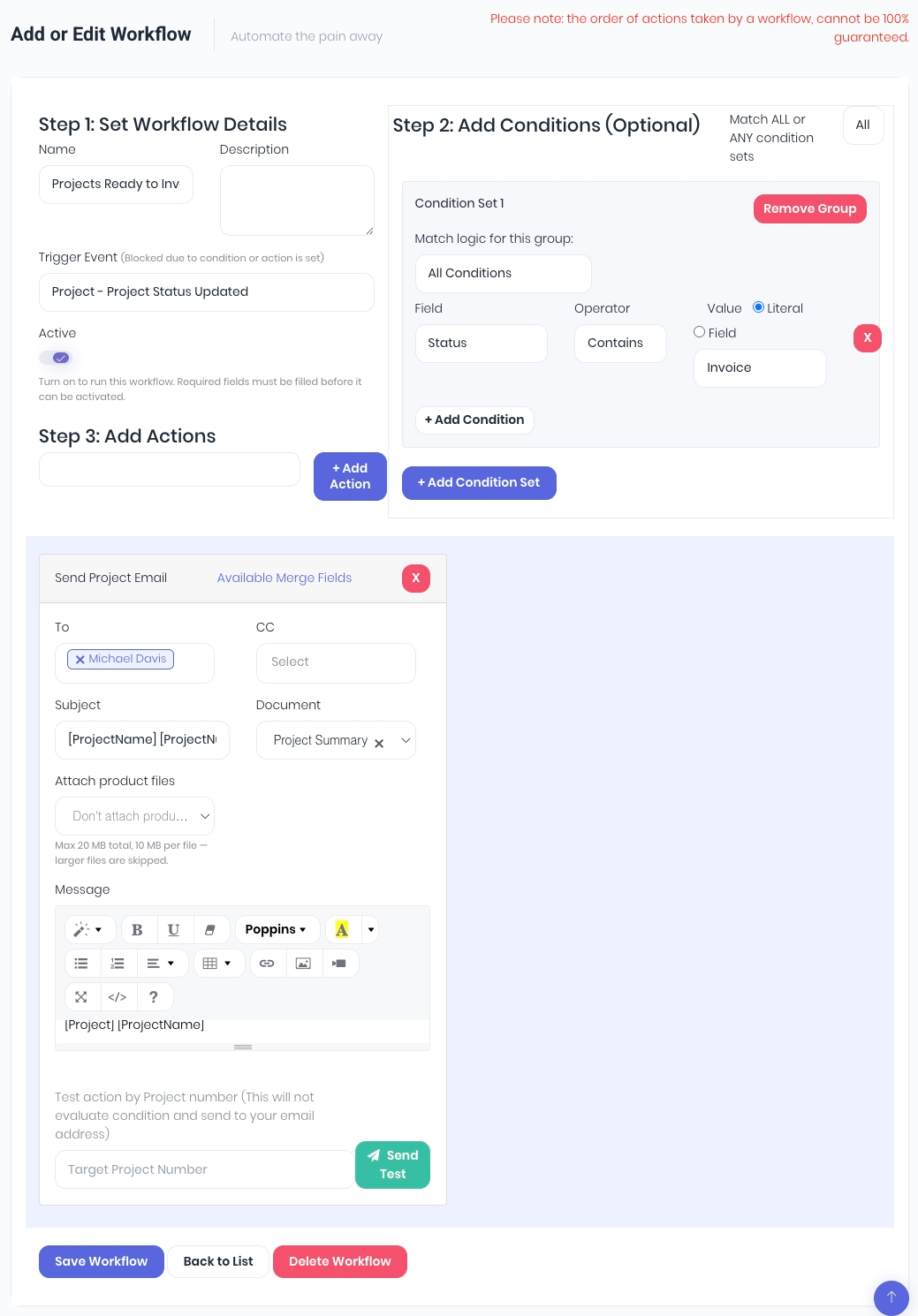
1. A Trigger
This is what starts it. For example "a quote is accepted" or "a project task is overdue". Some triggers fire the instant something happens; others run on a daily schedule (see *Event triggers vs. timer triggers* below).
2. Conditions (optional)
This is which records it applies to. Conditions narrow a workflow down so it only runs for the records you care about — for example, only leads with a budget over $3,000, or only when a project reaches the status "Completed". A workflow with no conditions runs for every matching record.
3. Actions
This is what it does. One or more steps that run in order: send an email, raise an invoice, create a to-do, update a task's status, post a chat message, and so on.
A simple breakdown of the above in plain terms When [trigger], and if [conditions],then do [actions].
Event triggers vs. timer triggers
Triggers come in two kinds, and the difference matters when you set one up:
Event triggers:
- fire once, the moment something happens. Examples include a lead is created, a quote is issued, a project status changes. There's nothing to schedule with this setting; the workflow runs immediately as soon as the trigger is met.
Timer triggers:
- run on a daily schedule and look across your open records (open quotes, open tasks, unpaid invoices, etc). They're how you build reminders and chase-ups ("remind the client 7, 14 and 21 days after a quote is sent"). Timer triggers use a day-based condition so each reminder fires once on its day, not every day afterwards.
How a workflow goes live: the lifecycle
Workflows you install from the Library don't run straight away. They follow a deliberate path so nothing fires before you're ready:
1. Import
you install a ready-made template (or build your own). It's created as an inactive draft.
2. Fill in the blanks
most templates need a few details only you can provide: a recipient, a project status, an email subject and message. These are the fields the wizard leaves blank for you.
3. Activate
once everything required is filled in, you switch the workflow on. From that point it runs automatically.
The Activate Gate
A draft cannot be activated until every required field has a value. This is a safety net: it stops a half-finished workflow from going live and, say, sending a blank email. If you try to activate before you're done, WorkGuru blocks it and tells you exactly what's missing — for example:
"This workflow can't be activated yet — the condition 'Status' still needs a value. -> Fill it in, then activate."
Saving a workflow as a draft is always allowed — only activation is gated. You can import now and finish setting up later.
Understanding conditions
When you add a condition you choose three things: a field on the record, an operator, and a value.
Operators available:
Operator | Meaning |
| Equals / Does Not Equal | Exact match (text is case-insensitive) |
| Contains / Does Not Contain | Text contains the value |
| Greater Than / Greater or Equal | Numbers and dates |
| Less Than / Less or Equal | Numbers and dates |
| Date is exactly *N* days old | Timer workflows — matches on one specific day |
| Date is more than *N* days old | Timer workflows |
| Date is less than *N* days old | Timer workflows |
Notes:
- The three "days old" operators are for timer triggers and let you build day-based reminders and chase-ups.
- Compare to a value, or to another field: usually you compare a field to a fixed value you type (for example - Budget greater than 3000). You can also compare a field to another field on the same record (for example - Total paid less than Total).
- when a workflow has several conditions, you choose whether *all* of them must be true (AND) or *any* of them (OR).
When you import a template, conditions come in three styles, ready-made templates pre-build their conditions for you. Each condition value is one of:
Fixed — set by the template and hidden; you never need to touch it.
Default — pre-filled with a sensible value (e.g. "high value = budget over $3,000") that you can change. It won't block activation if you leave it as-is.
To fill in — the template ships it blank because only you can supply it (e.g. which project status counts as "completed" in your account).
These block activation until you set them.
Key terms
Template — a ready-made, pre-built workflow you can install from the Library.
Pack / Collection — a themed bundle of templates you can install together (e.g. the *Cashflow Accelerator Pack*).
Starter Pack — four recommended automations, a good first install for most accounts.
Draft / Inactive — a workflow that exists but isn't running yet.
Active — a workflow that is live and will run automatically.
Placeholder / merge field — a tag like [QuoteNumber] or [LeadClientName] you can put in an email subject or message; WorkGuru replaces it with the real value when the email is sent.
Who can set up workflows
Access is controlled by two permissions:
View (Workflows) — see the dashboard and browse the Library.
Manage (Workflows → Manage) — install, edit, activate, deactivate and delete workflows.
If you can see your workflows but the install/activate buttons don't work, you likely have view access only — ask an administrator for the Manage permission.
Was this article helpful?
That’s Great!
Thank you for your feedback
Sorry! We couldn't be helpful
Thank you for your feedback
Feedback sent
We appreciate your effort and will try to fix the article