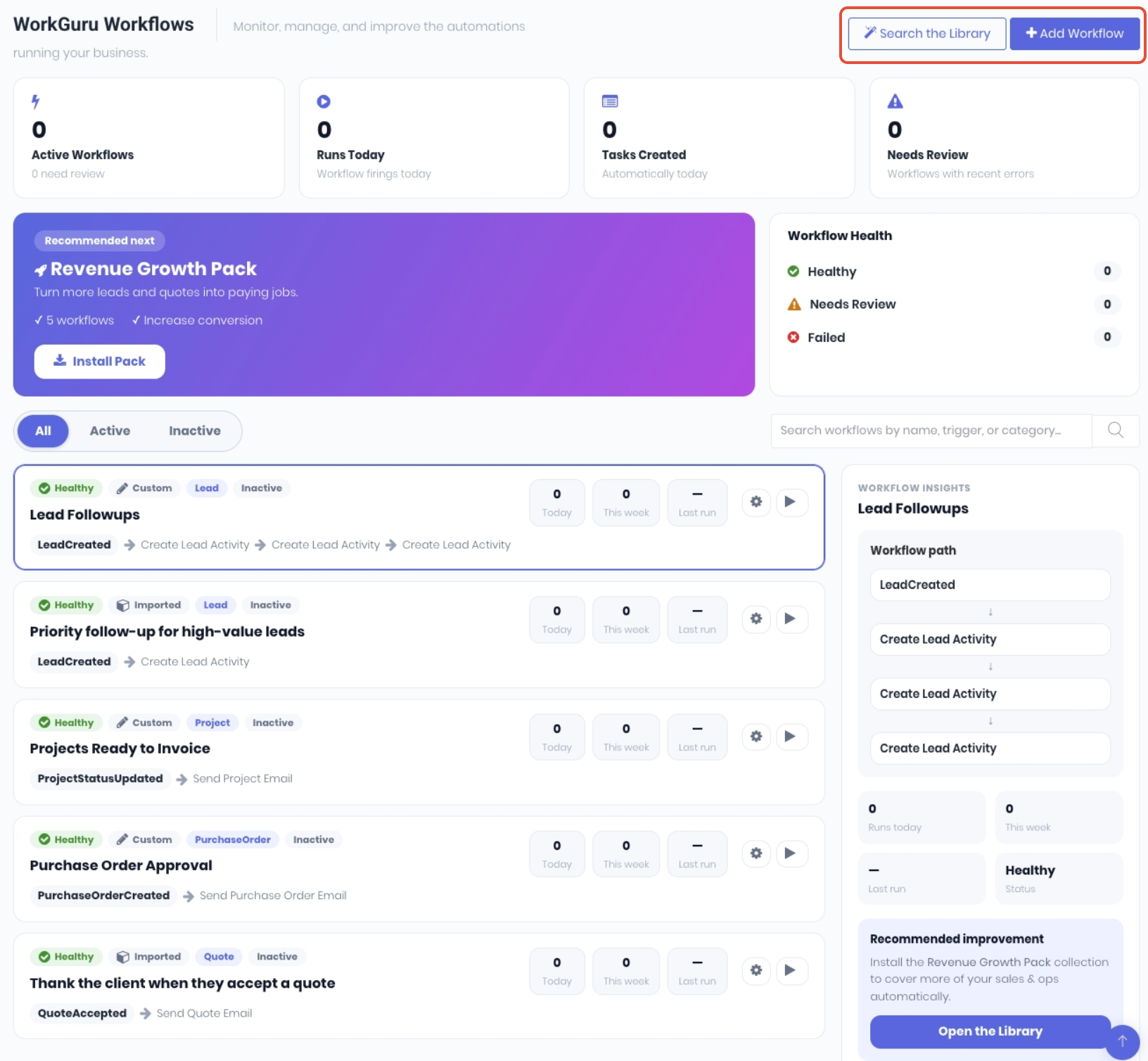
The Workflow Dashboard is your home base for automation where you can monitor, manage, and improve the automations running your business. From here you can see what's running, how it's performing, and activate, edit, pause or delete any workflow. Recommended best practices to monitor your workflows are:
- After installing workflows from the Library, switch to the Inactive tab and work through your new drafts: open each, fill in the blanks, activate.
- Check Needs Review / Failed periodically. These flag workflows whose actions hit an error (for example an email that couldn't find a recipient).
- Use Runs Today and each card's run stats to confirm your automations are firing as expected.
The dashboard has shortcuts to add pre-built workflows with the Search the Library button and create new workflows with the Add Workflows button.
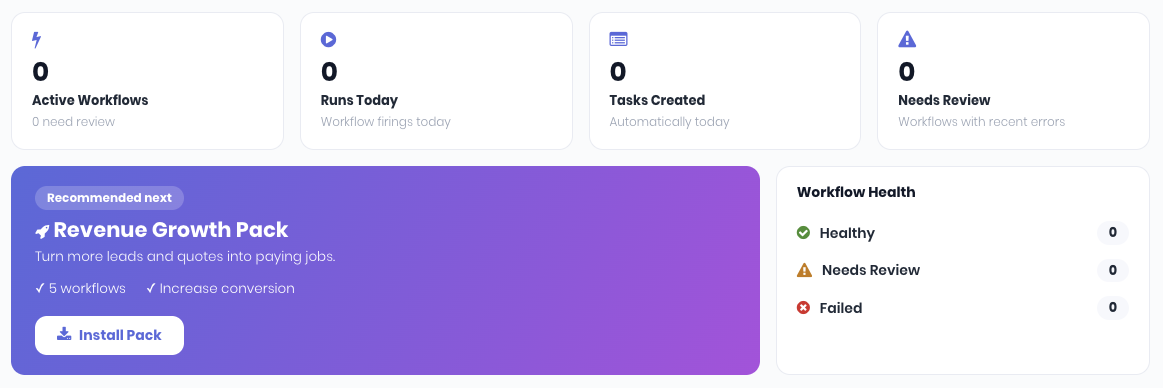
The Summary widgets will display what is happening with your widgets by status.
- Active Workflows - How many are live (with a note of how many need review)
- Runs Today - How many times your workflows fired today
- Tasks Created - Tasks/to-dos created automatically today.
- Needs Review - Workflows that hit errors recently
The Workflow Health widget displays a quick traffic light summary of recent workflow run results.
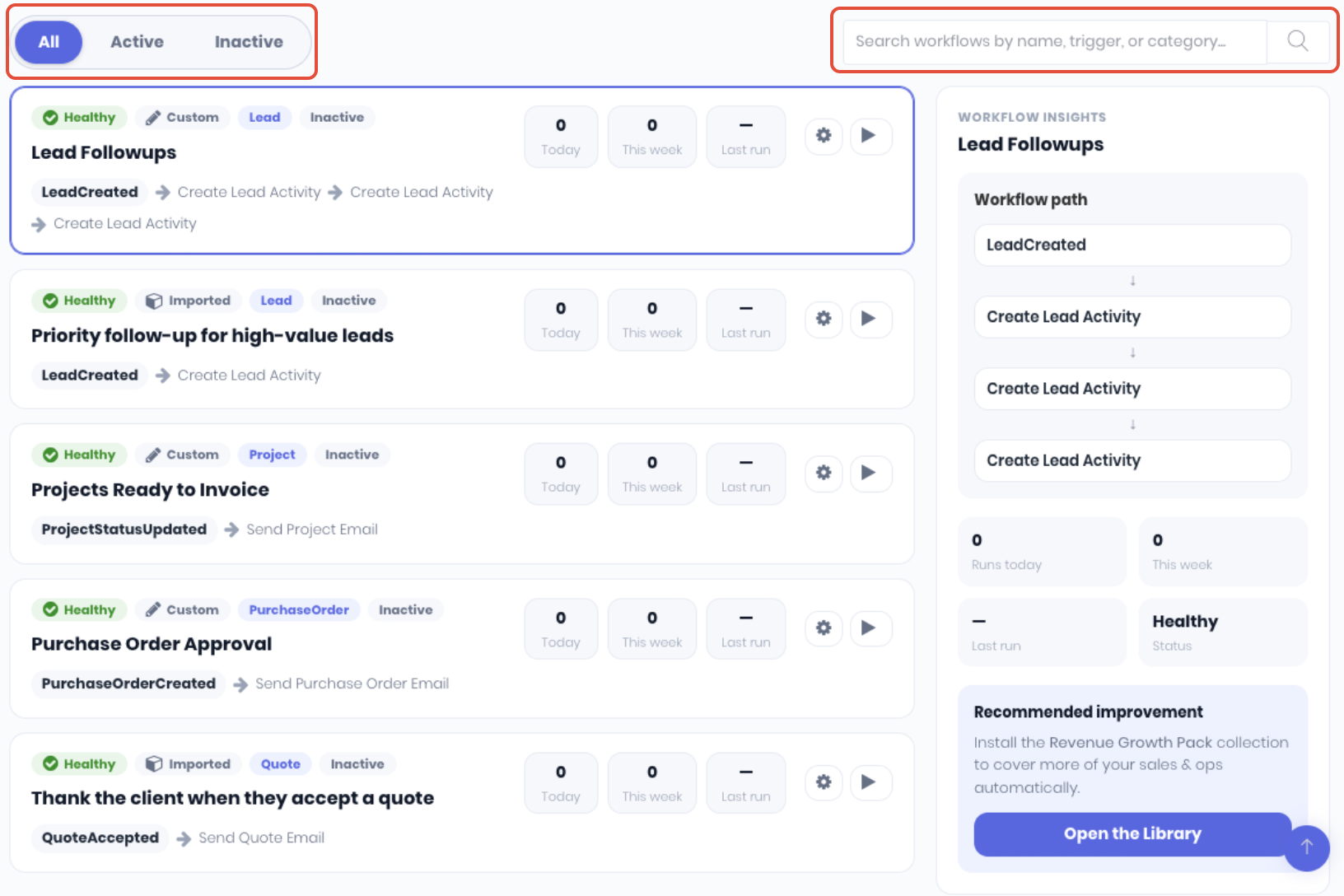
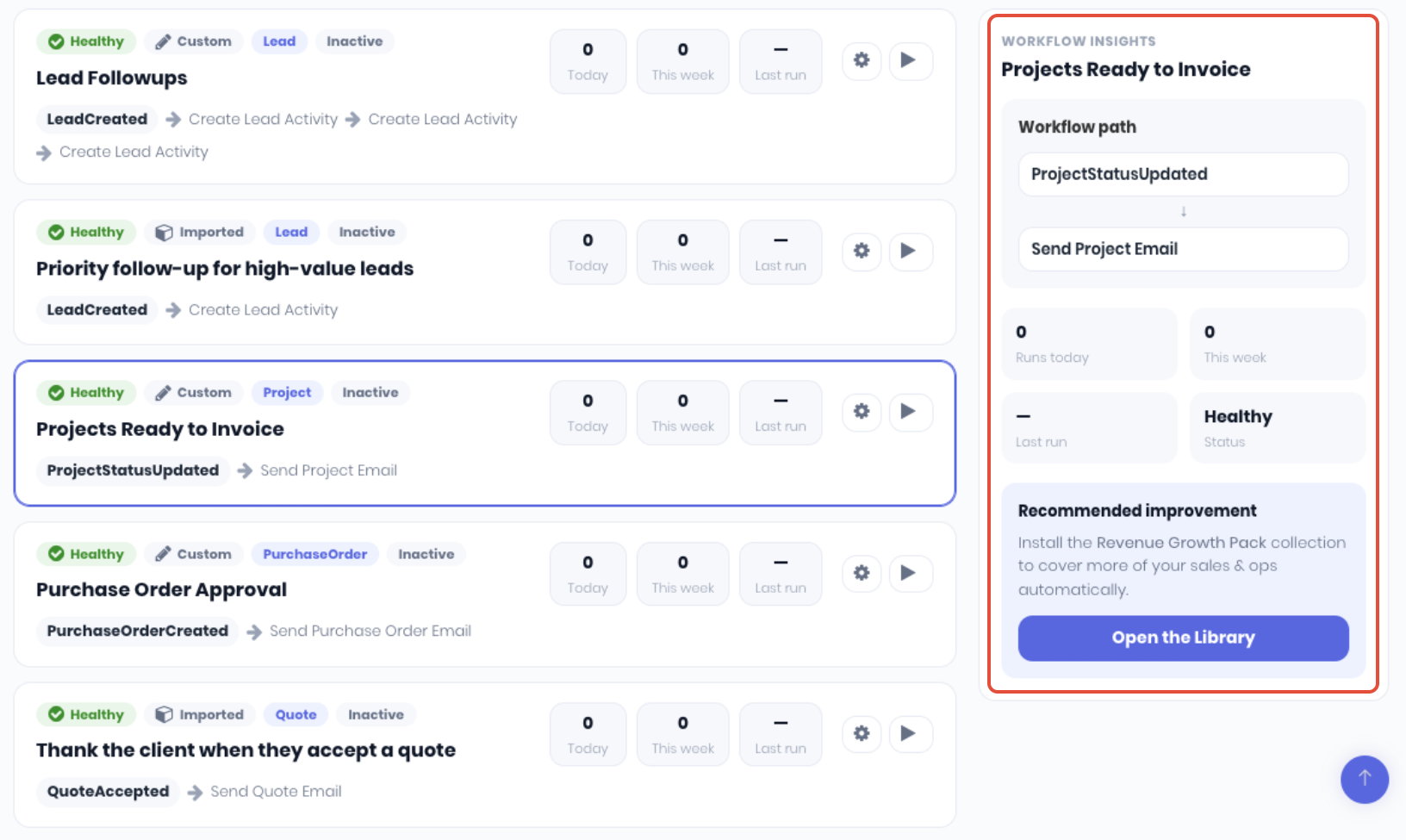
You current workflows are displayed in a list with the selected lead displaying a summary of what it does. You can toggle the view between Active and Inactive workflows and Search for workflows by name, trigger or category.
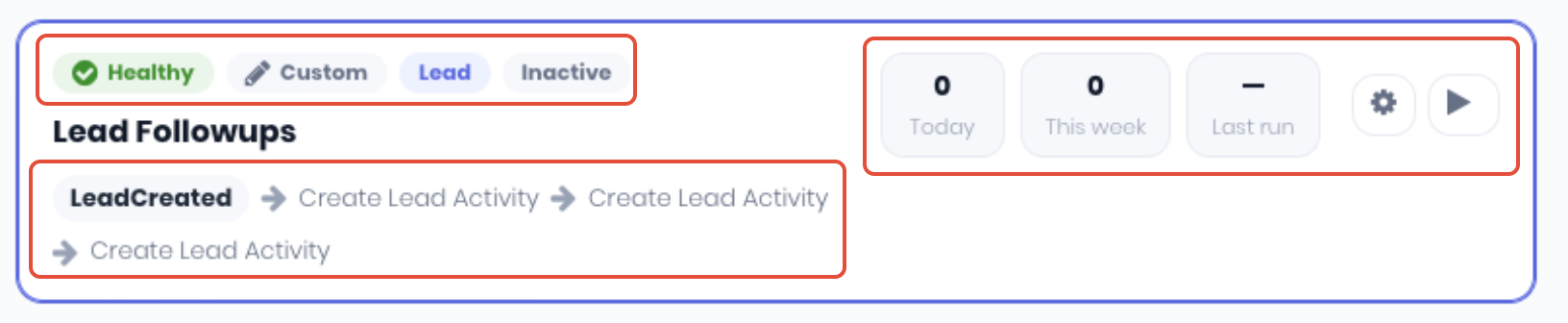
Selecting an individual lead will display the lead specific details and status. Each workflow displays:
- Status - Healthy (green), Needs Review (amber) or Failed (red).
- Source - Imported (installed from the Library) or Custom (built by you).
- Category - The transactions it relates to (Lead, Quote, Project…).
- Active/Inactive - Displays Inactive if it isn't switched on.
- Summary - What does the workflow do (trigger → first few actions).
- Run Stats - workflow run statistics (Today, This Week, Last Run)
- Actions - Edit workflow (Cog icon) and active/inactive toggle (Play/Pause icon)
An overview of what the selected lead does is displayed in the Workflow Insights section, including run statistics and a recommendation of similar workflows available in the automations library
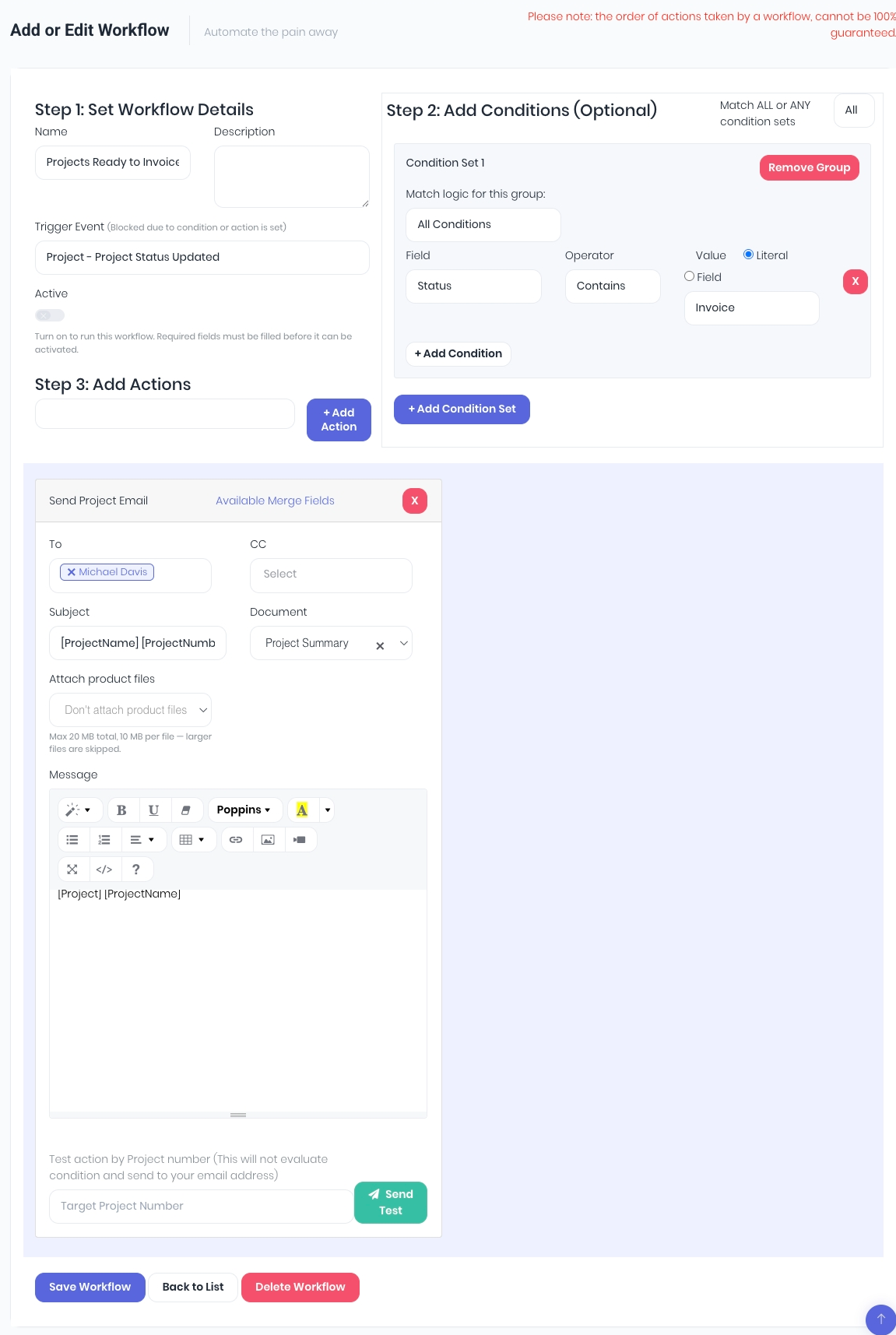
Clicking on a workflow's Cog icon opens the edit workflow page where you can update the the details, conditions and actions.
Clicking on a workflow's Play/Pause Icon makes the workflow active or inactive.

Was this article helpful?
That’s Great!
Thank you for your feedback
Sorry! We couldn't be helpful
Thank you for your feedback
Feedback sent
We appreciate your effort and will try to fix the article